Fulfill orders
Accept incoming orders, deliver the work before the deadline, submit the live link, and protect your completion rate.
When an advertiser buys a placement on one of your domains, the order appears on your Orders page in Publisher mode. This guide walks through the full lifecycle from a new order to getting paid.
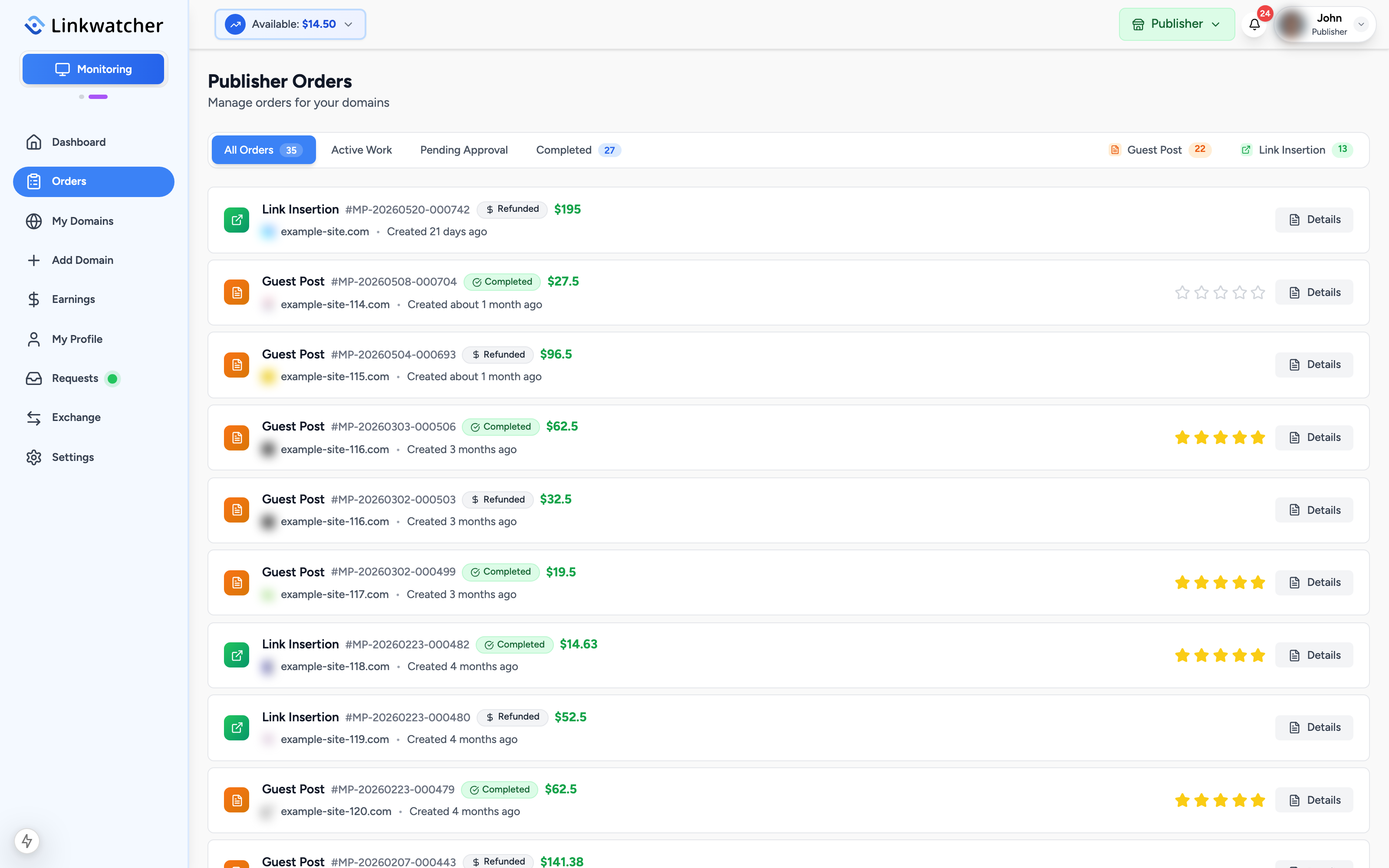
The Orders page
Open Orders from the publisher sidebar. Each row shows the order number, the domain, the service type (guest post or link insertion), a status badge, the amount you will earn for that order, and the delivery deadline. Click any row to open the full order details, including the buyer's target URL, anchor text, and content.
Accept or reject a new order
New paid orders arrive with the New Order status.
- Review the order details: target URL, anchor text, article content or attached document, and any special requirements.
- Click Accept to start working, or Reject if you cannot fulfill it.
- Rejecting requires a reason. The buyer sees it and can update the order and resubmit it, or request a refund.

Warning: Once you accept an order you can no longer reject it. Only accept work you are sure you can deliver.
Deadlines
Every order has a due date based on the turnaround time you set on the domain listing. It is shown on the order row, for example "Due in 5 days". Deliver before the deadline; consistently late or abandoned orders hurt your reputation with buyers.
Orders with content writing
If the buyer also purchased content writing from you on a guest post order, there is an extra article stage after you accept:
- The order moves to Article Writing. Write the article according to the buyer's brief.
- Click Submit Article and share the draft (for example a shared document link).
- The buyer reviews it. They can approve it or request an article revision with notes.
- Once the article is approved, publish it on your site and continue with submitting the live link below.
Submit the completed work
For accepted orders (and approved articles), deliver the result:
- Open the order and click Submit Work.
- Enter the Published URL of the live page. It must be on the ordered domain, for example https://example.com/my-new-post.
- Optionally use the built-in link check to confirm the buyer's link is present on the page before you submit.
- Add completion notes if helpful, then submit.
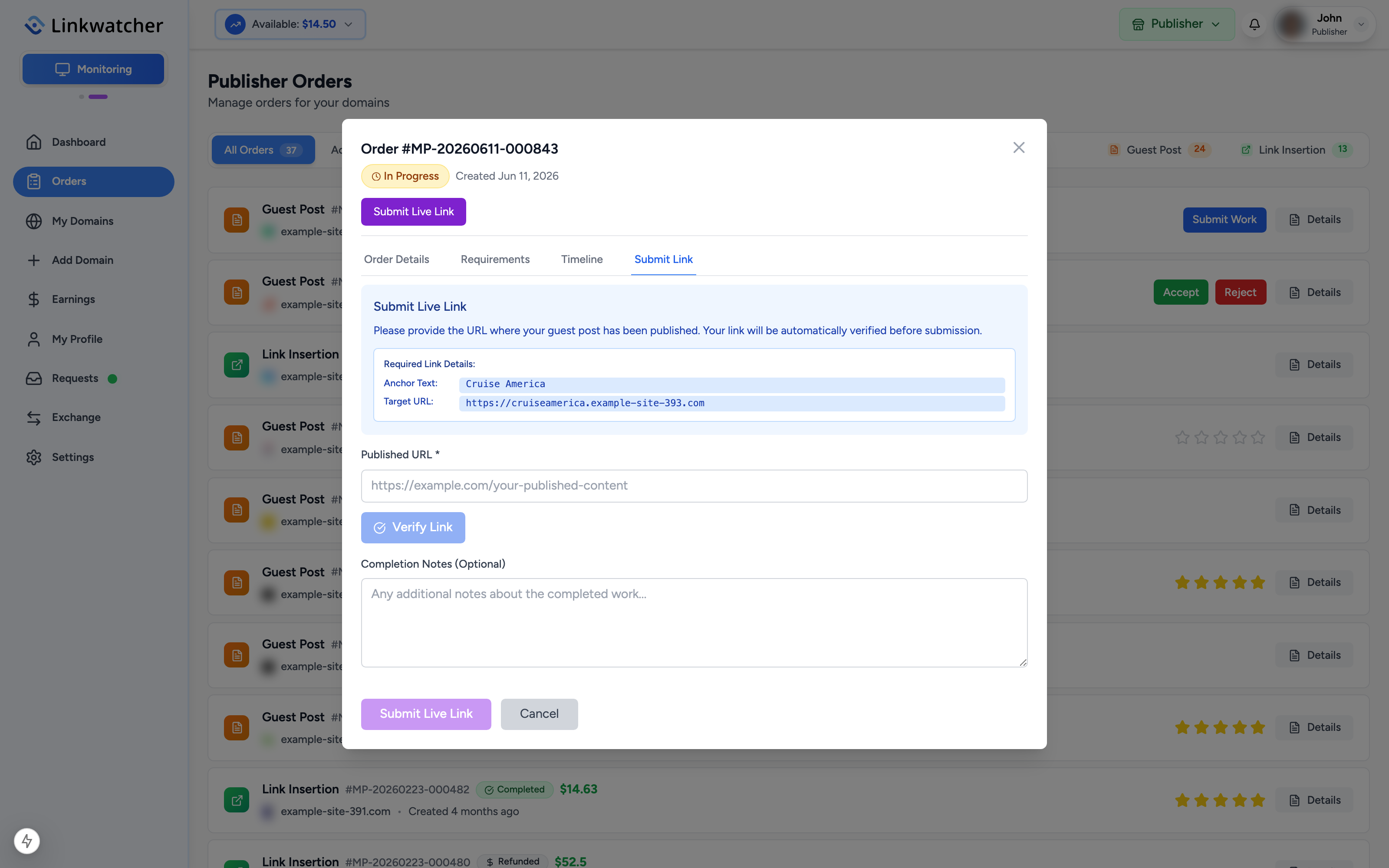
The order status changes to Awaiting Approval.
Buyer review and auto-acceptance
After you submit:
- The buyer can approve the work, which completes the order and credits your earnings.
- The buyer can request a revision with notes. Fix the issue and submit again.
- If the buyer does nothing for 72 hours, the order is accepted automatically and completes on its own. The remaining time is shown on the order row.

When the order completes, the amount moves from your pending earnings into your available balance (see the earnings guide), and both sides can leave a star rating.
Your completion rate
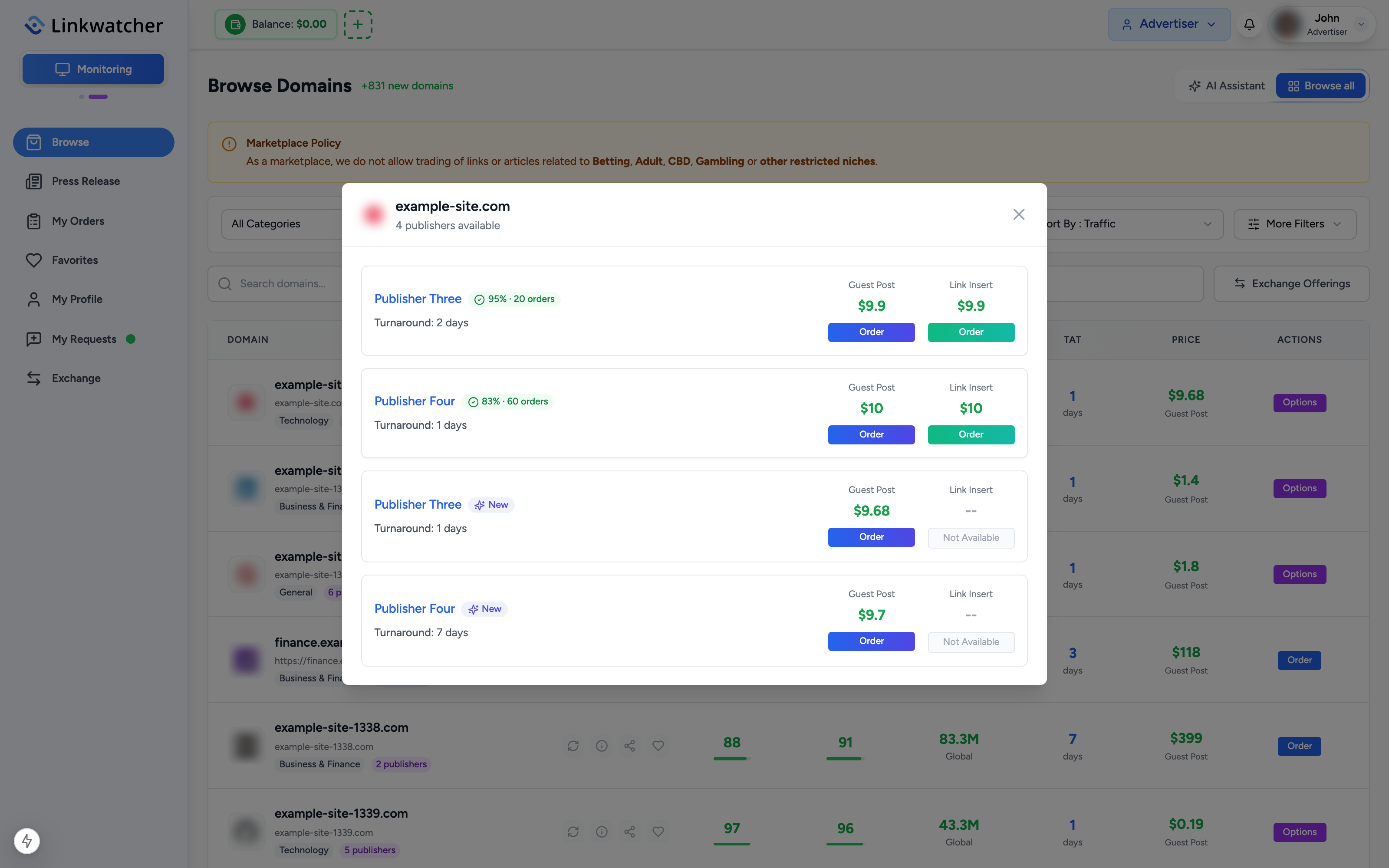
Buyers see a completion rate badge next to publishers on domain listings. It is the percentage of your orders with a final outcome that you completed successfully, for example "95% completion, 19 of 20 orders".
What helps your rate:
- Accepting only orders you can deliver, and delivering them on time.
- Responding to revision requests quickly instead of letting orders stall.
What hurts your rate:
- Rejecting orders, and orders that end cancelled or refunded.
- Removing published links after completion. This also leads to disputes and can result in suspension.
Note: New publishers without enough finished orders show a "New publisher" badge instead of a rate, so your first orders count double: they build both your earnings and your track record.