Keyword rank monitor
Track where your website ranks for the keywords that matter, by region, language, and location.
The Keywords page tracks your website's search ranking positions over time. Add the keywords you care about and Linkwatcher records where your project domain ranks for each of them.
Add keywords
- Open Keywords in the sidebar.
- Click the button to add keywords.
- Type or paste your keywords in the text area, one per line. A counter under the box shows how many you have entered.
- Choose the Region and Language to search in.
- Optionally pick one or more Locations for city-level tracking, and attach Tags to group keywords.
- Submit. Duplicates already tracked are skipped automatically and you are told how many were added.
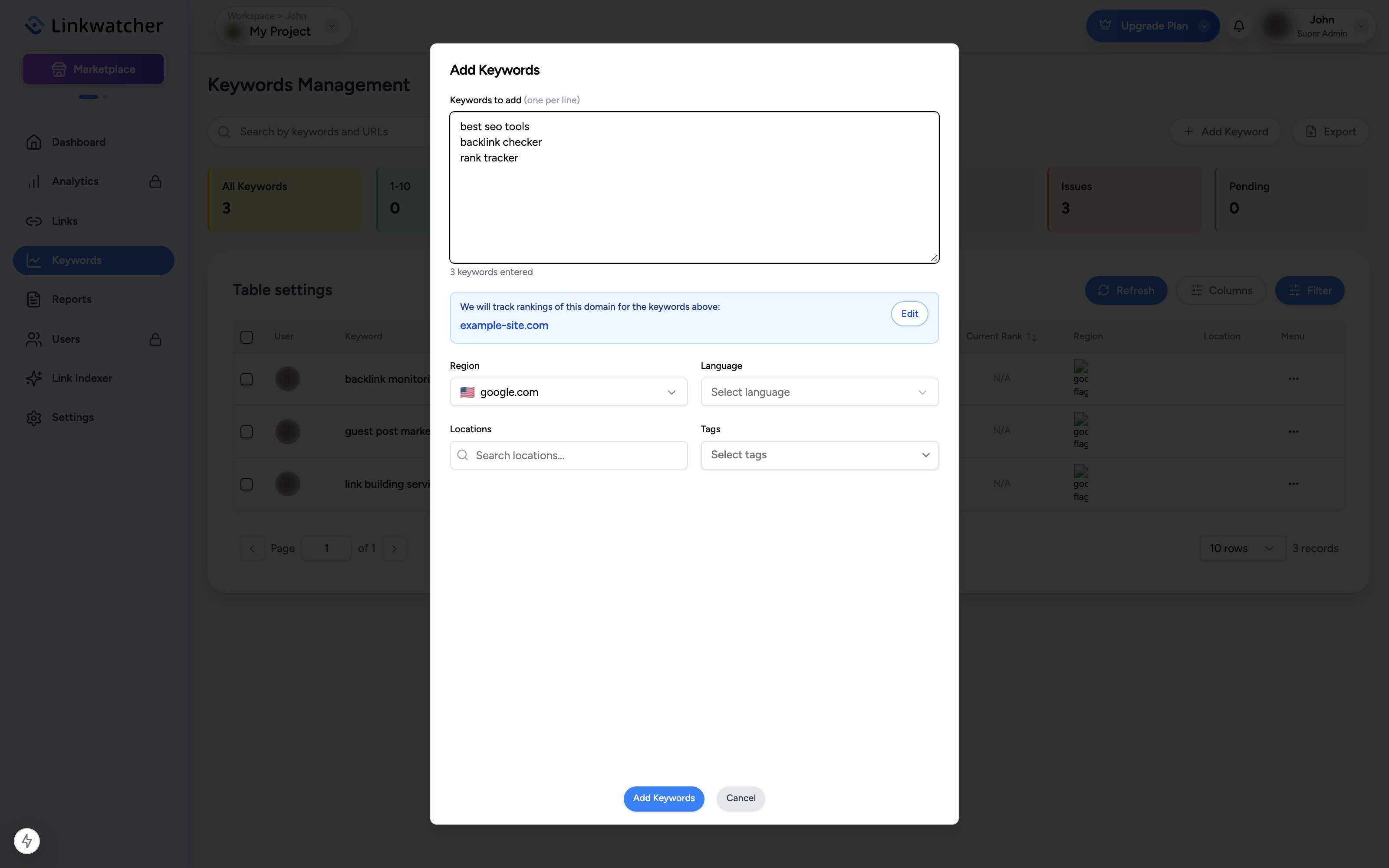
The dialog confirms which domain will be tracked: "We will track rankings of this domain for the keywords above", followed by your project website such as https://example.com. If no domain is set, use the Edit button to add it in Project Settings.
Note: Keyword tracking is subject to your plan's monthly limit. If adding a batch would exceed the limit you see a warning with your current usage, the reset date, and the option to add a partial batch.
Reading the keywords table
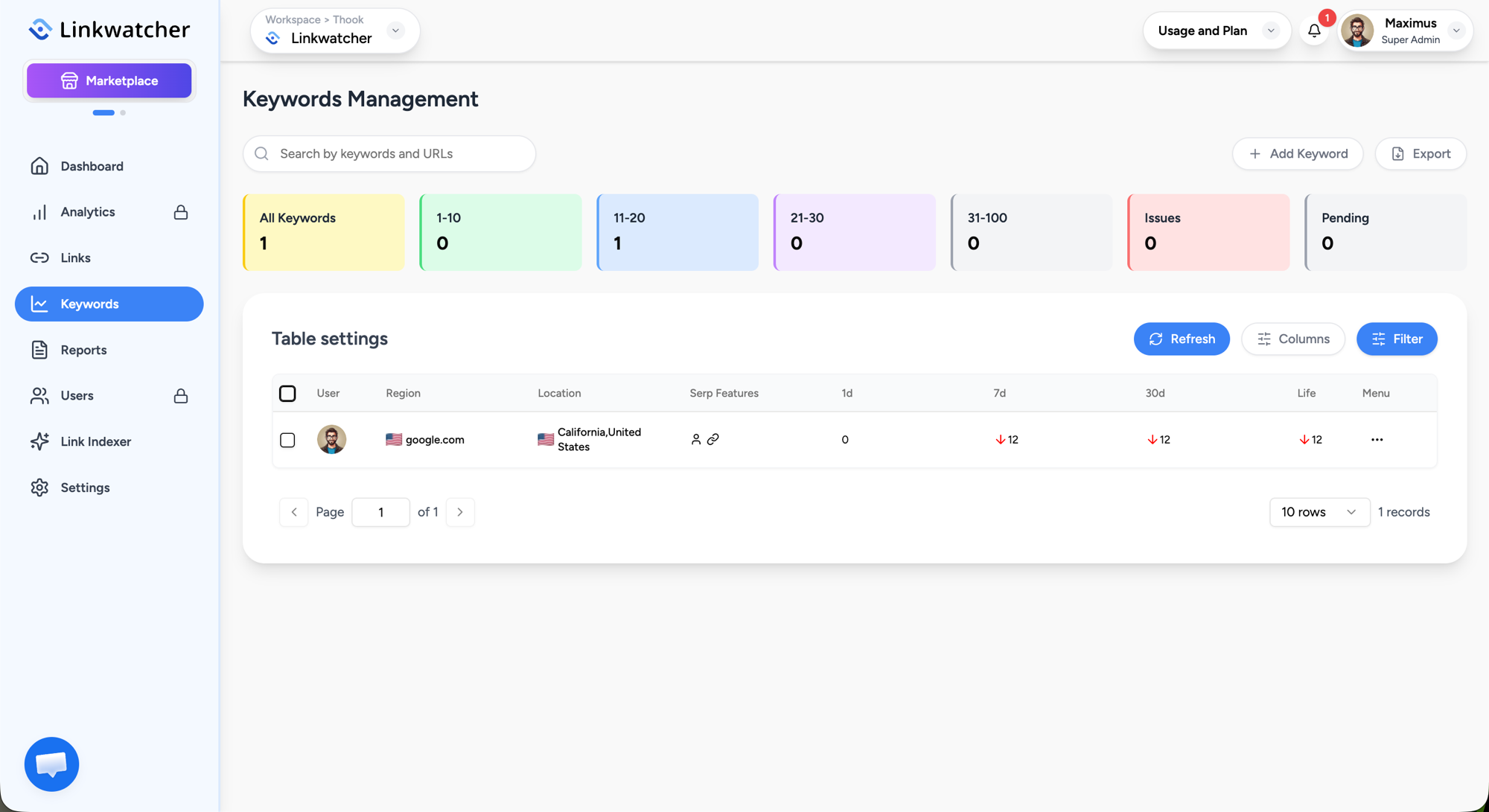
Cards across the top group keywords by current position: All Keywords, 1-10, 11-20, 21-30, 31-100, plus Issues and Pending. Click a card to filter the table.
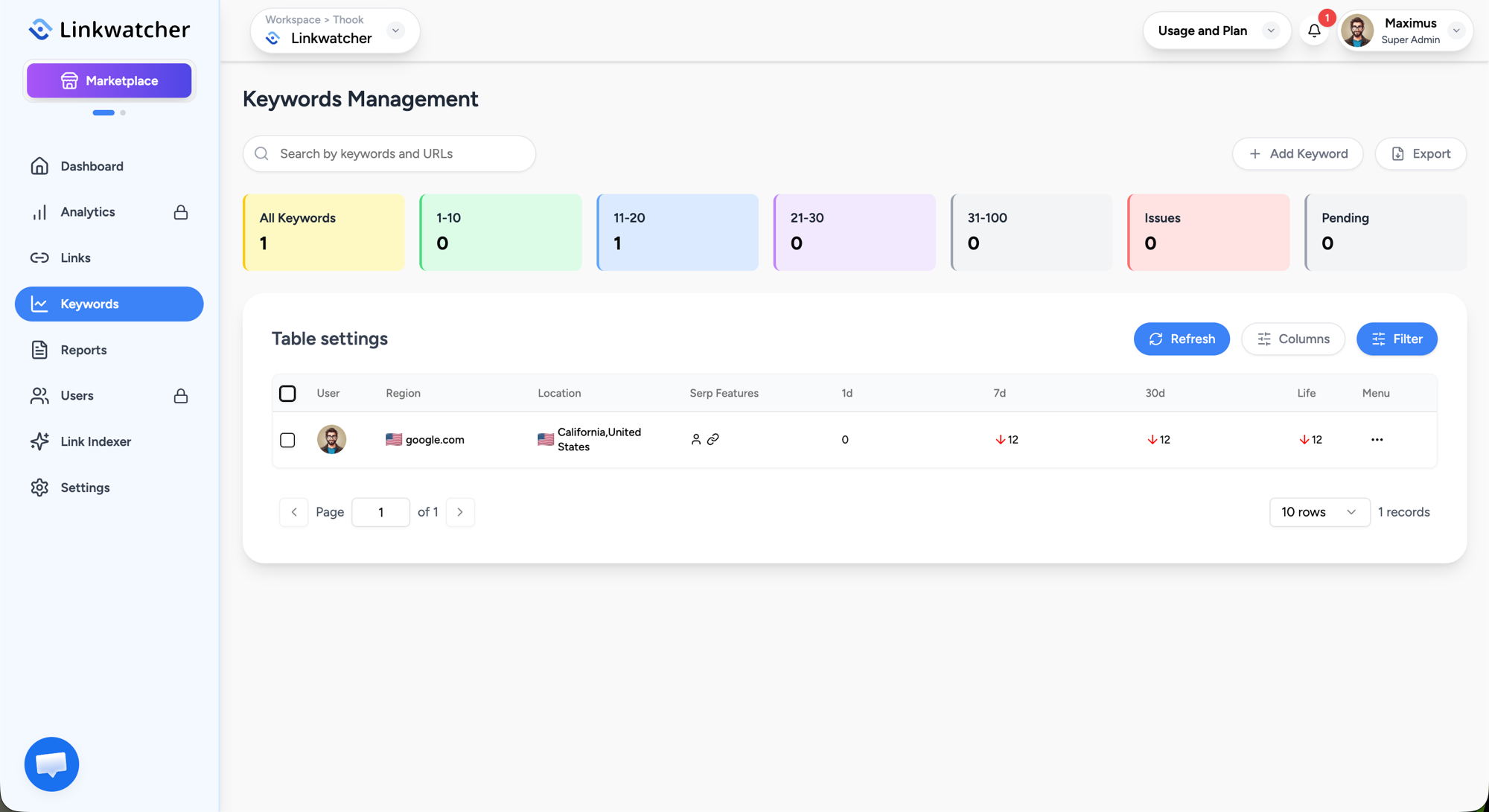
Each row can show:
- Keyword, the Ranking URL that appears in results, and the Region and Location tracked.
- Start Rank (position when you began tracking) and Current Rank.
- Change columns for 1D, 3D, 7D, 30D, and Life, so you can see movement at a glance.
- SERP Features detected for the keyword, Status, Tags, and the date it was added.
Use the Columns button to show or hide columns, Filter to narrow by user, status, tags, regions, or locations, and the search box to find a keyword quickly.
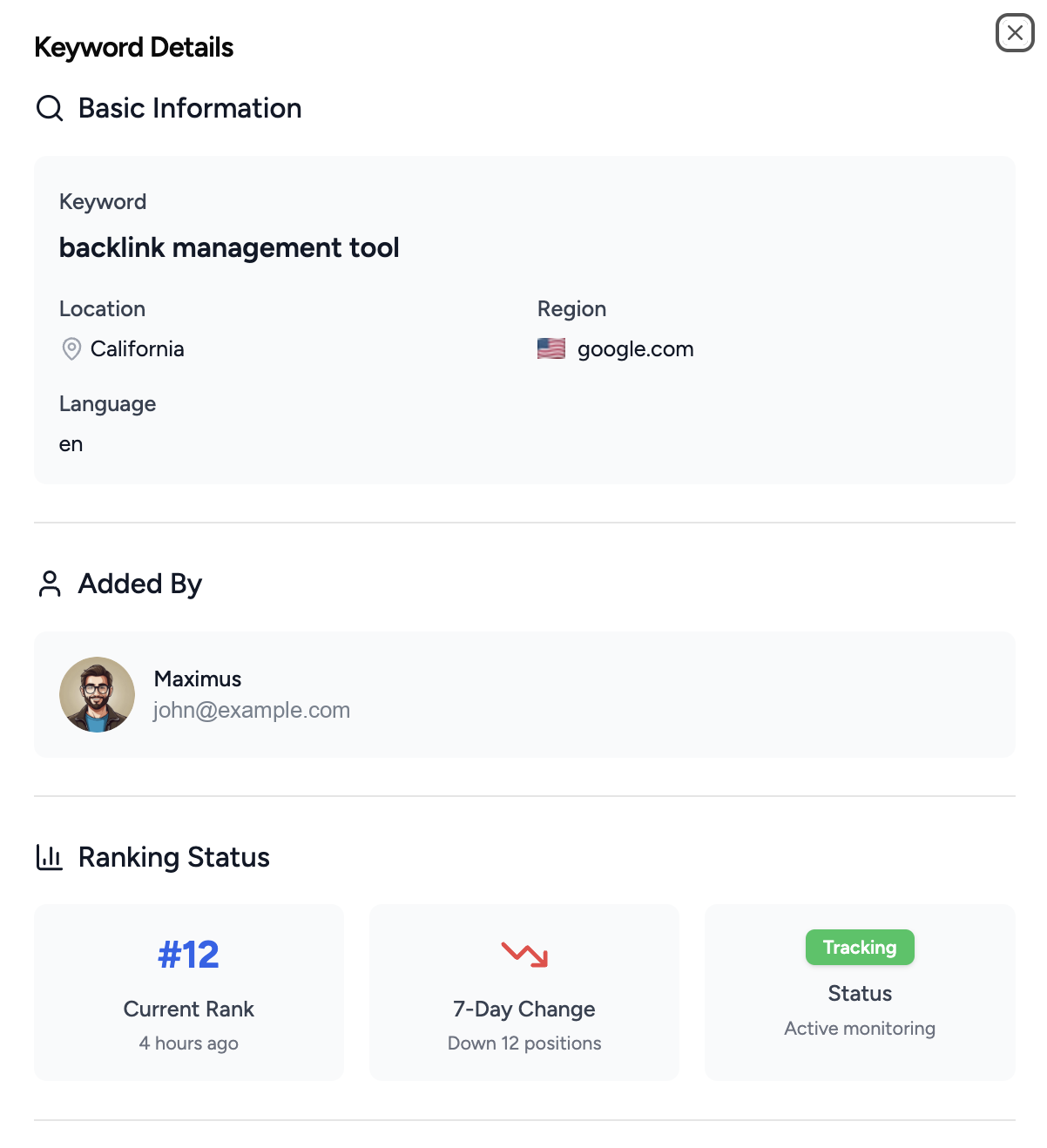
Keyword details and updates
Open a keyword's row menu to view its details, including a ranking history chart, or to edit its settings, or delete it. Bulk selection lets you delete several keywords at once.
Exporting keywords
Click Export above the table, optionally choose a date range and which columns to include, then export to CSV.
Keyword analytics
For a bigger picture, open Analytics > Keywords. It shows daily position changes, the distribution of your keywords across positions, top performing keywords, a volatility meter, SERP features distribution, and a comparison across tracked locations.
Stay informed
Ranking problems appear as alerts in the bell icon in the top bar, and you can enable Daily, Weekly, or Monthly Keywords Reports by email under Settings > Project Settings. You can also share a read-only Rank monitor Overview report from the Reports page.