Browse the marketplace
Search and filter the website catalog, read the key metrics, review domain details, and pick the right publisher.
The Browse page is the heart of the marketplace for advertisers. It lists every website you can order guest posts and link insertions on, with the metrics you need to judge quality at a glance. It has two views: the AI Assistant, which is what you see first, and Browse all, the full catalog table.
The AI Assistant view
When you enter the marketplace, you land on the AI Assistant. Instead of scrolling a catalog, you describe what you need in plain language and the assistant recommends matching sites. You can:
- Analyze my site: paste your URL and get recommendations tailored to your niche and authority.
- Find by niche: ask for sites in a specific topic, for example "technology blogs with DR above 50".
- Best value: let the assistant surface strong sites at lower prices.
- Post a request: turn your brief into a buyer request that publishers respond to with offers.
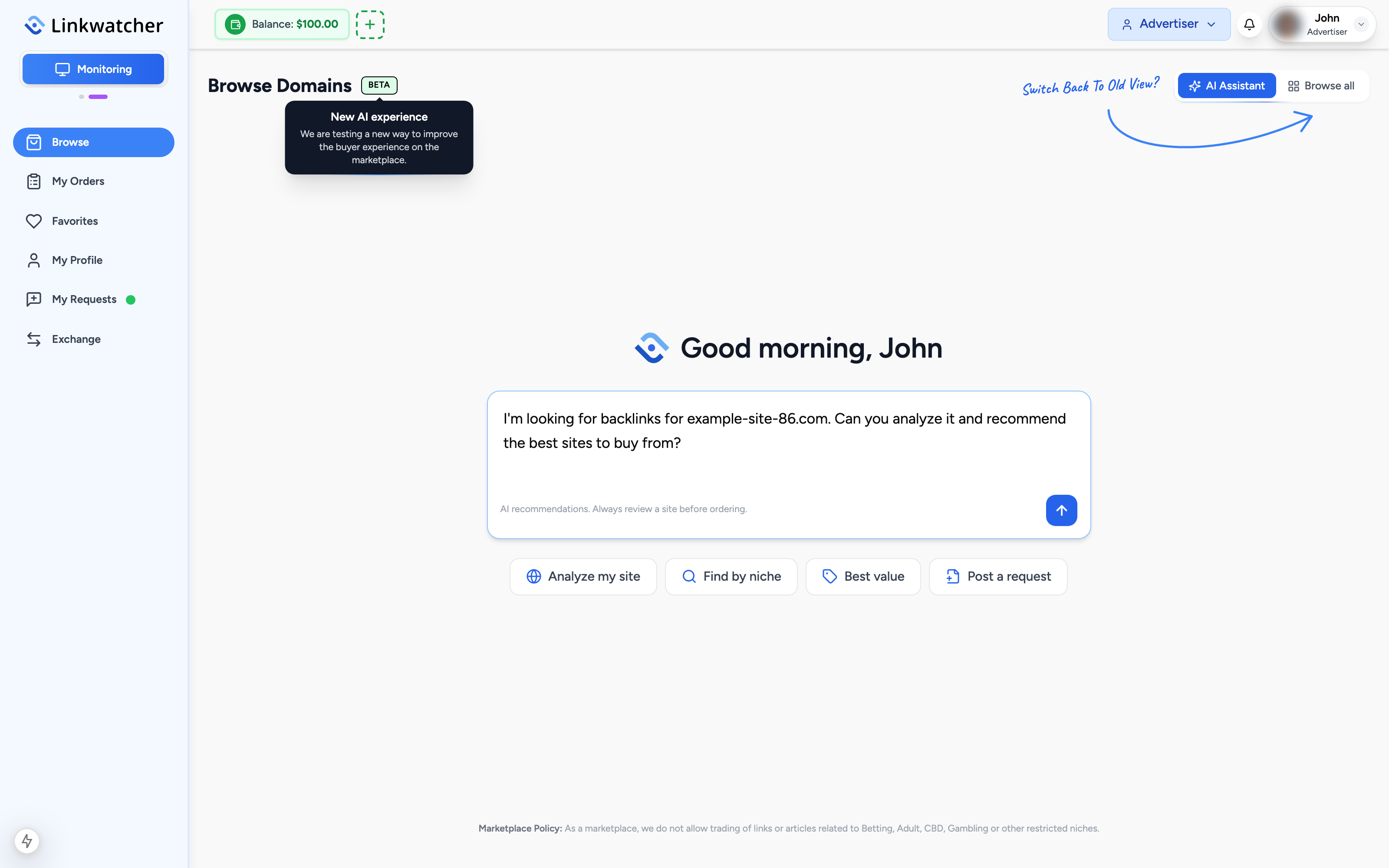
Note: The assistant gives recommendations, always review a site's metrics and details before ordering.
Use the toggle in the top-right corner to switch between AI Assistant and Browse all at any time. The rest of this guide covers the Browse all view.
Quick filters and sorting
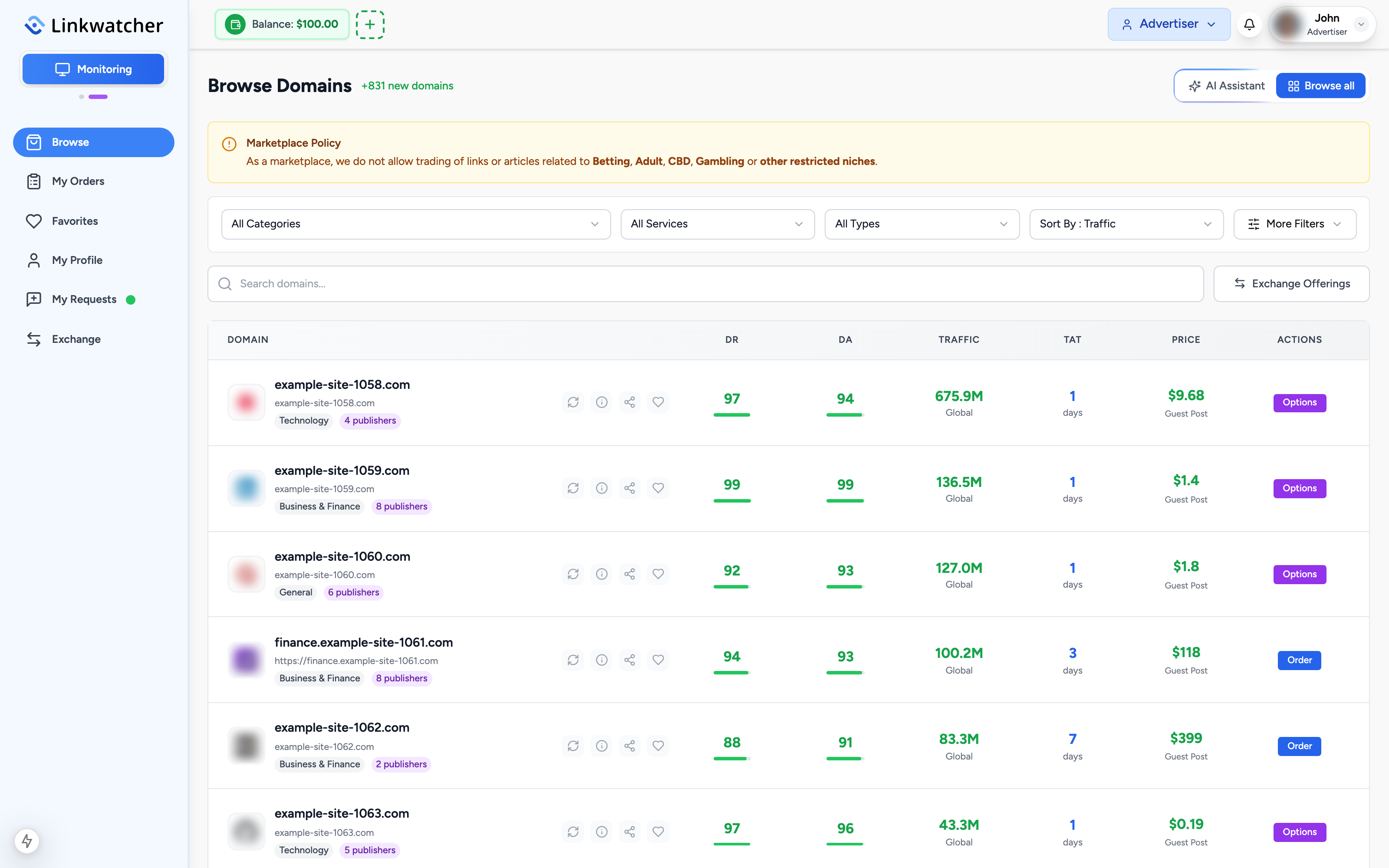
The bar at the top of the Browse all view gives you the fastest controls:
- Category: limit results to a topic, for example Technology or Health.
- Service type: All Services, Guest Posts, or Link Insertions.
- Listing type: All Types, Owners Only, or Resellers Only. Owners run the website themselves; resellers place content on sites they do not own.
- Sort By: Newest First, Oldest First, Traffic, Domain Rating, Domain Authority, or price (Guest Post or Link Insertion, low to high or high to low).
More Filters
Click More Filters to open the advanced panel. Here you can set ranges and pick from dropdowns:
- Domain Rating (min and max)
- Domain Authority (min and max)
- Traffic (min and max monthly visitors)
- Guest Post Price Range and Link Insertion Price Range
- Language and Country
- Publisher: show only listings from one specific publisher
Set your values and click Apply Filters. Use Clear All Filters to start over.
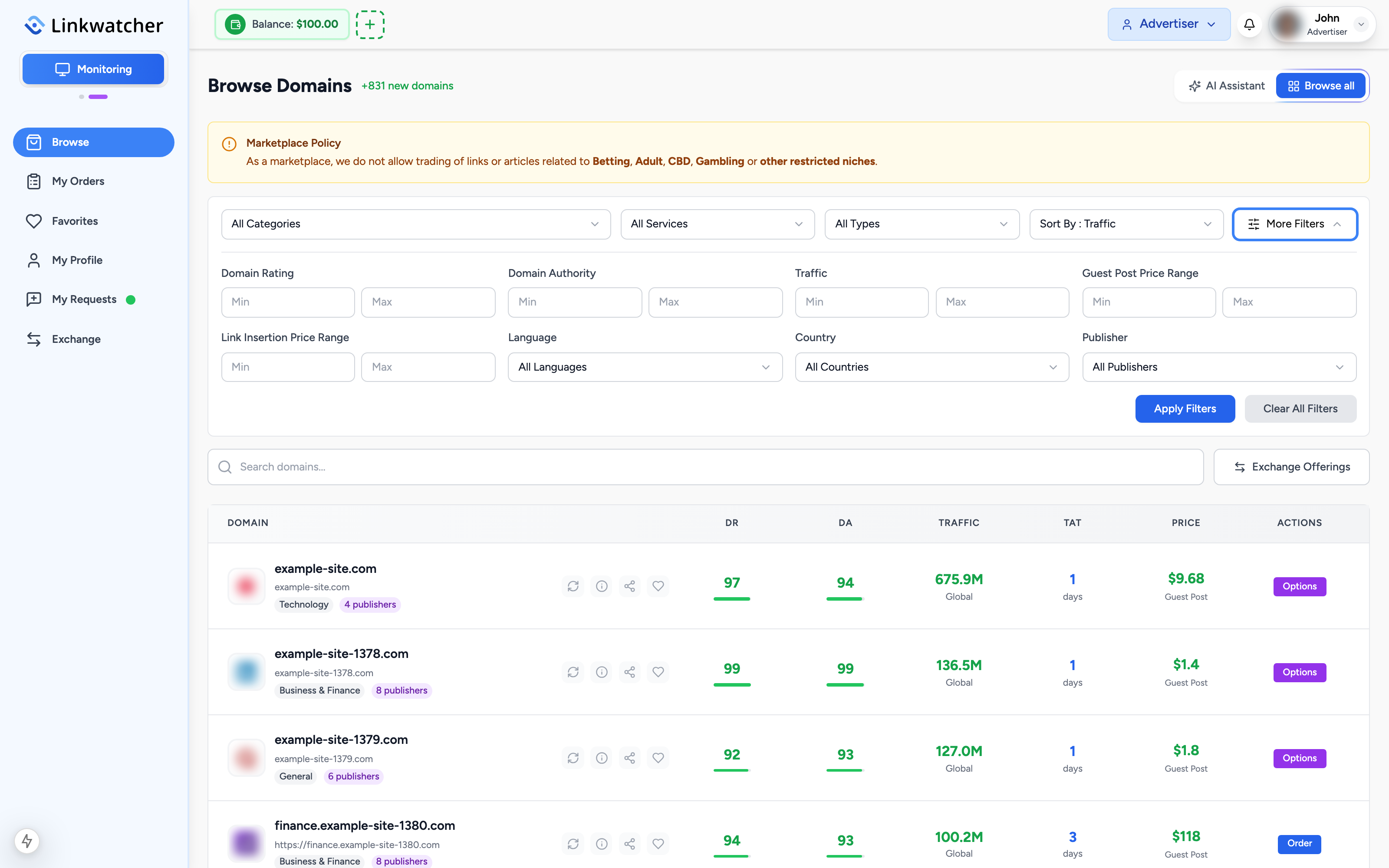
Note: Press Enter inside any range field to apply the filters immediately.
Reading the listing table
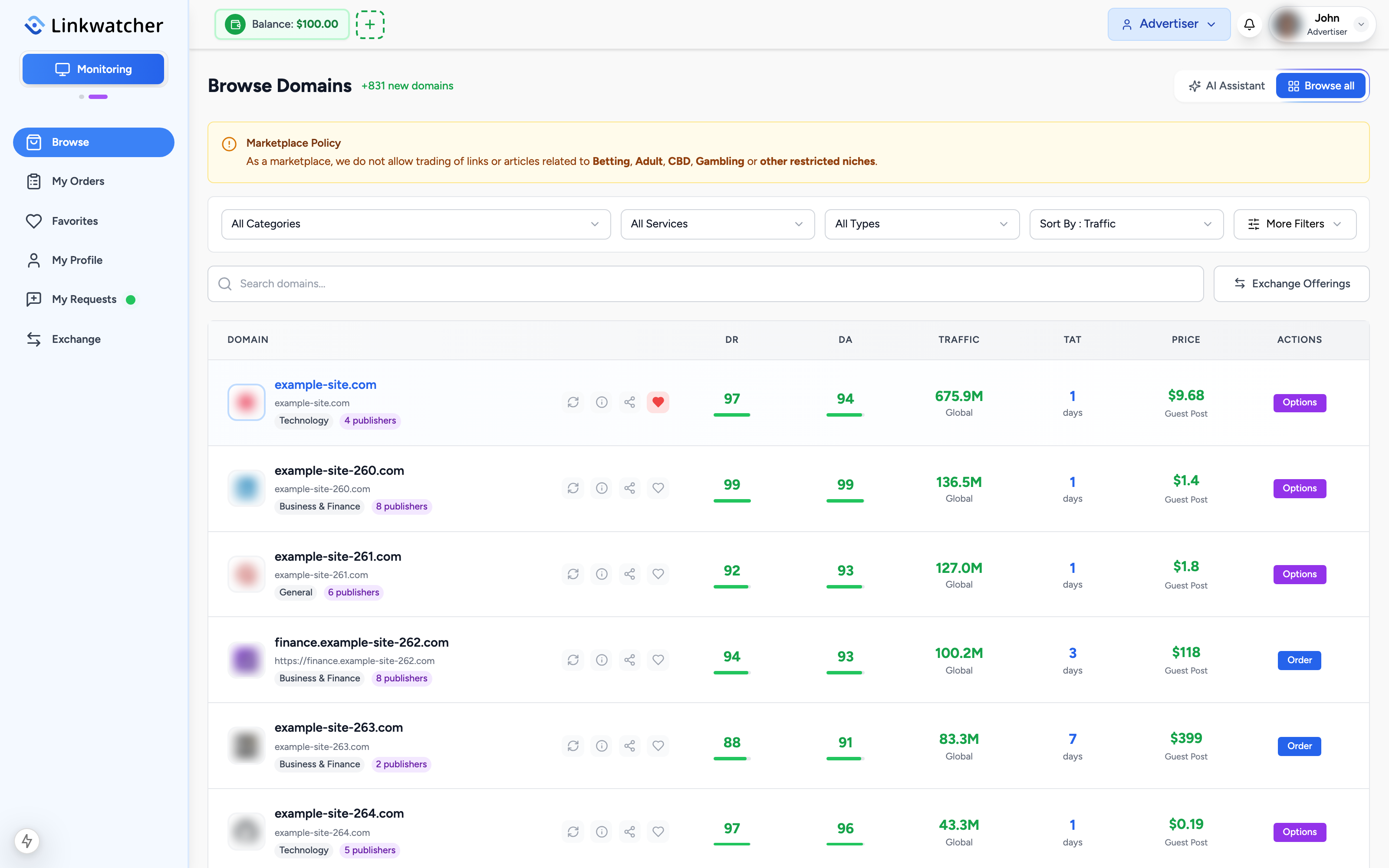
Each row in the results table shows the most important metrics for a website:
- DR (Domain Rating): backlink strength on a 0 to 100 scale.
- DA (Domain Authority): an alternative 0 to 100 authority score.
- Traffic: estimated monthly organic visitors.
- TAT (turnaround time): how quickly the publisher typically delivers.
- Prices: the cost for a guest post and, where offered, a link insertion.
Click the heart icon on any row to add the website to your Favorites. Favorited sites get a filled heart and appear on the Favorites page in the sidebar, so you can build a shortlist before ordering.
Domain details
Click a website to open its details view. On top of the table metrics you will see:
- Spam Score: a risk indicator; lower is better.
- Category, language, and country information.
- Turnaround Time and full pricing for each available service.
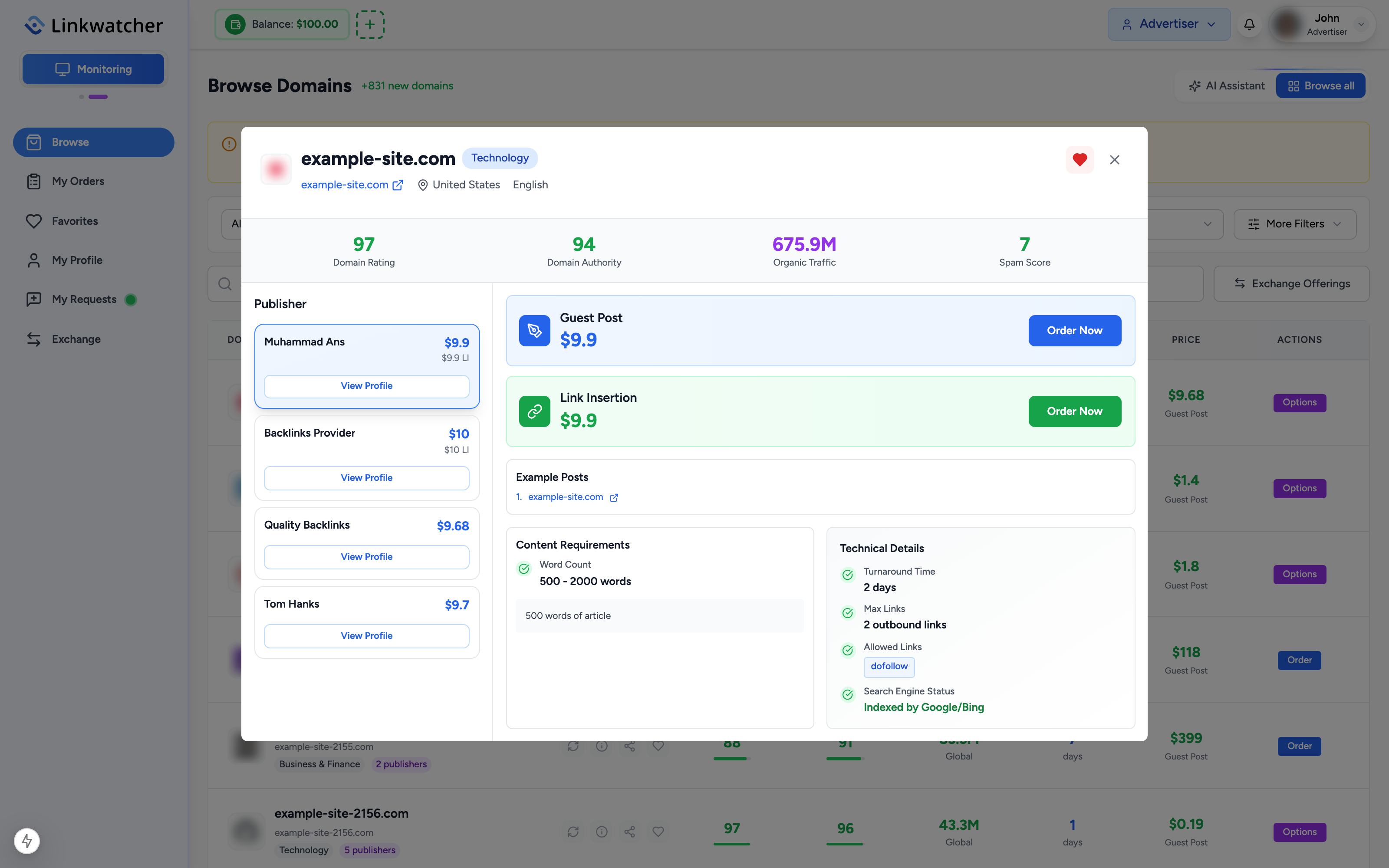
Warning: A high spam score or a traffic figure that looks out of line with the domain's rating can be a sign of a low-quality site. Always check the details before ordering.
Choosing among publishers
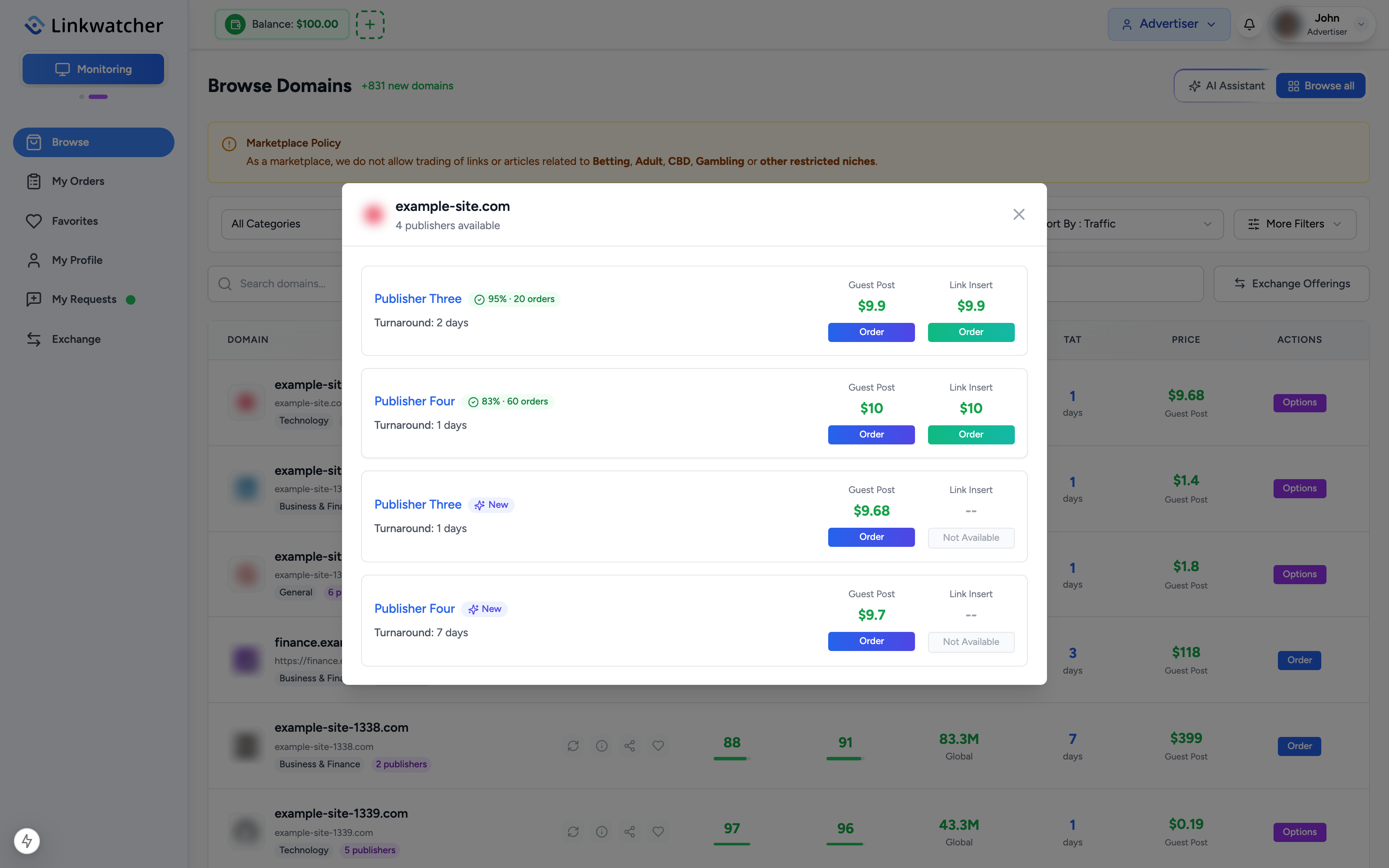
One website can be offered by several publishers, for example the site owner plus one or more resellers, often at different prices and turnaround times. The details view lists every publisher serving the domain so you can compare them side by side.
Each publisher entry can show a completion rate badge based on their order history. A high completion rate means the publisher reliably delivers accepted orders. Verified owners are listed ahead of resellers.
When you have picked the offer you want, click Order Now next to that publisher to start the order.
Favorites
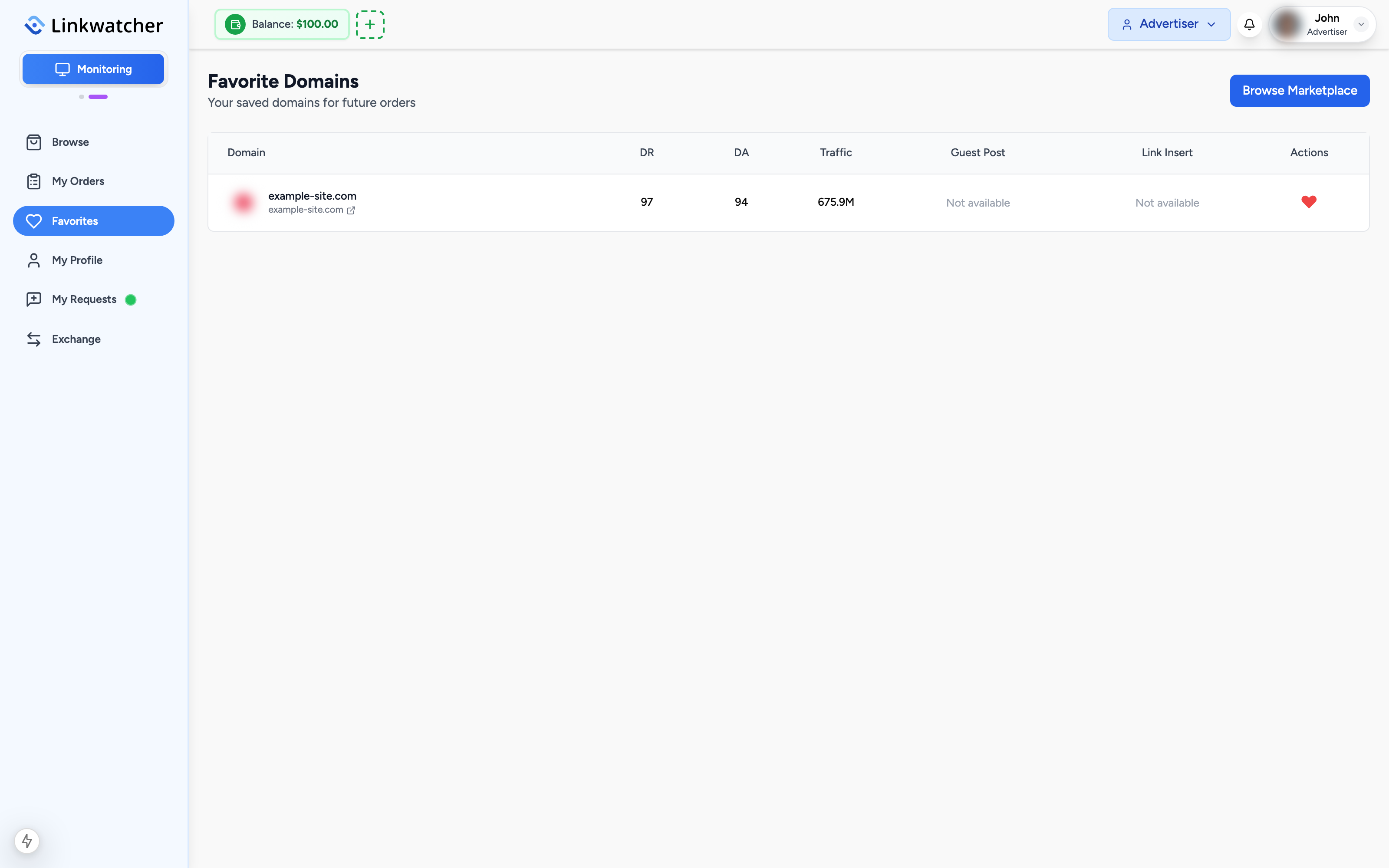
The Favorites page in the sidebar collects every website you have hearted. It is the easiest way to manage a shortlist:
- While browsing, click the heart icon on any listing or inside the details view.
- Open Favorites in the sidebar to review your saved sites.
- Order directly from the list, or click the heart again to remove a site.