Notifications
How the alerts bell works, what triggers notifications, and how to manage and clear them.
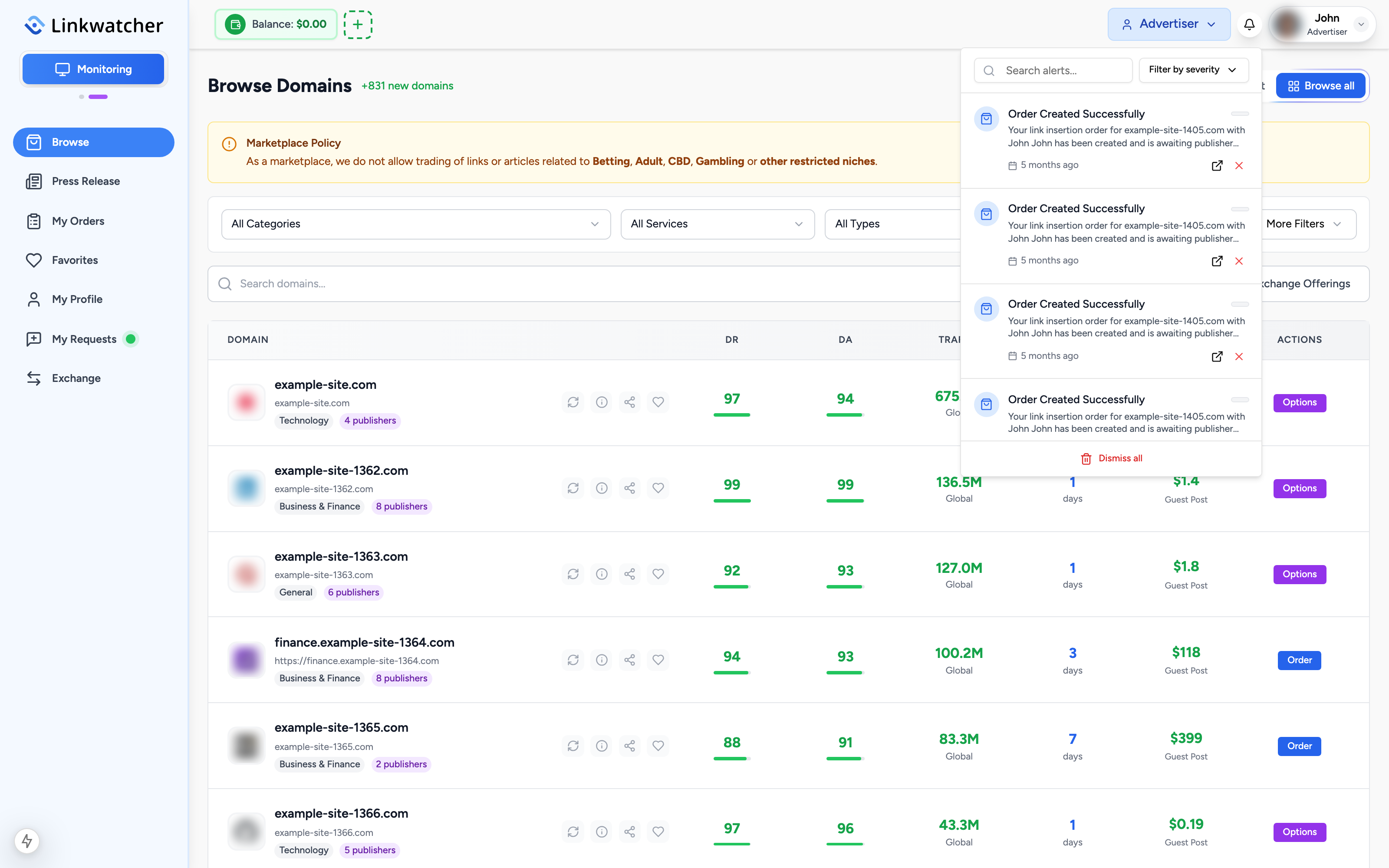
The bell icon in the top bar is your notification center. What it shows depends on the mode you are in: monitoring alerts in Monitoring mode, and order notifications in Marketplace mode.
Monitoring alerts
In Monitoring mode the bell shows alerts for the currently selected project. Alerts are created automatically when checks detect something that needs your attention, for example a backlink that is no longer found on its referring page or a problem with a tracked keyword.
Each alert shows:
- A title and message describing what happened.
- A severity badge: Critical or Warning.
- How long ago it happened, in your project's timezone.
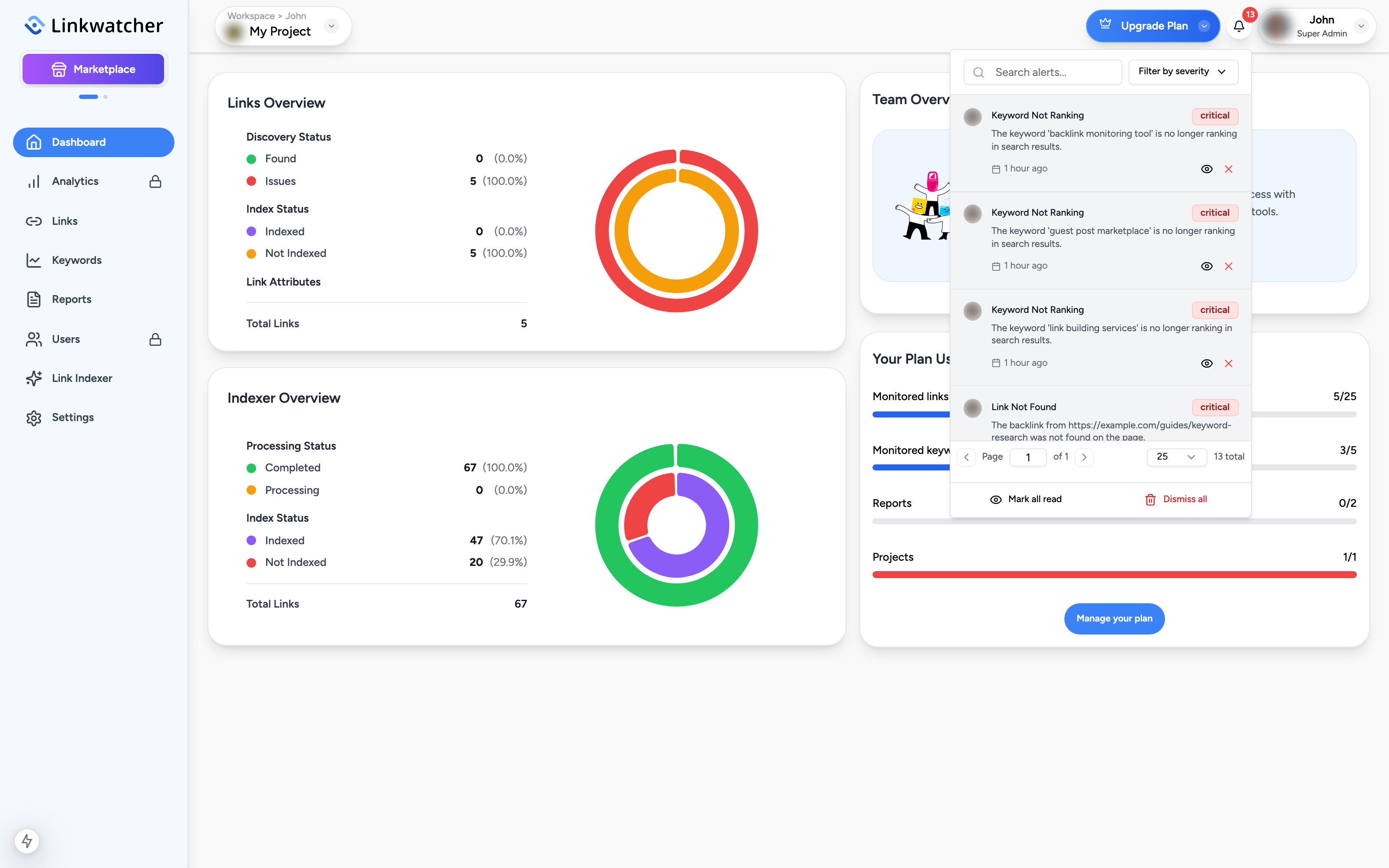
Clicking an alert about a link takes you to the Links page filtered to that URL, so you can inspect and rescan it right away.
Finding a specific alert
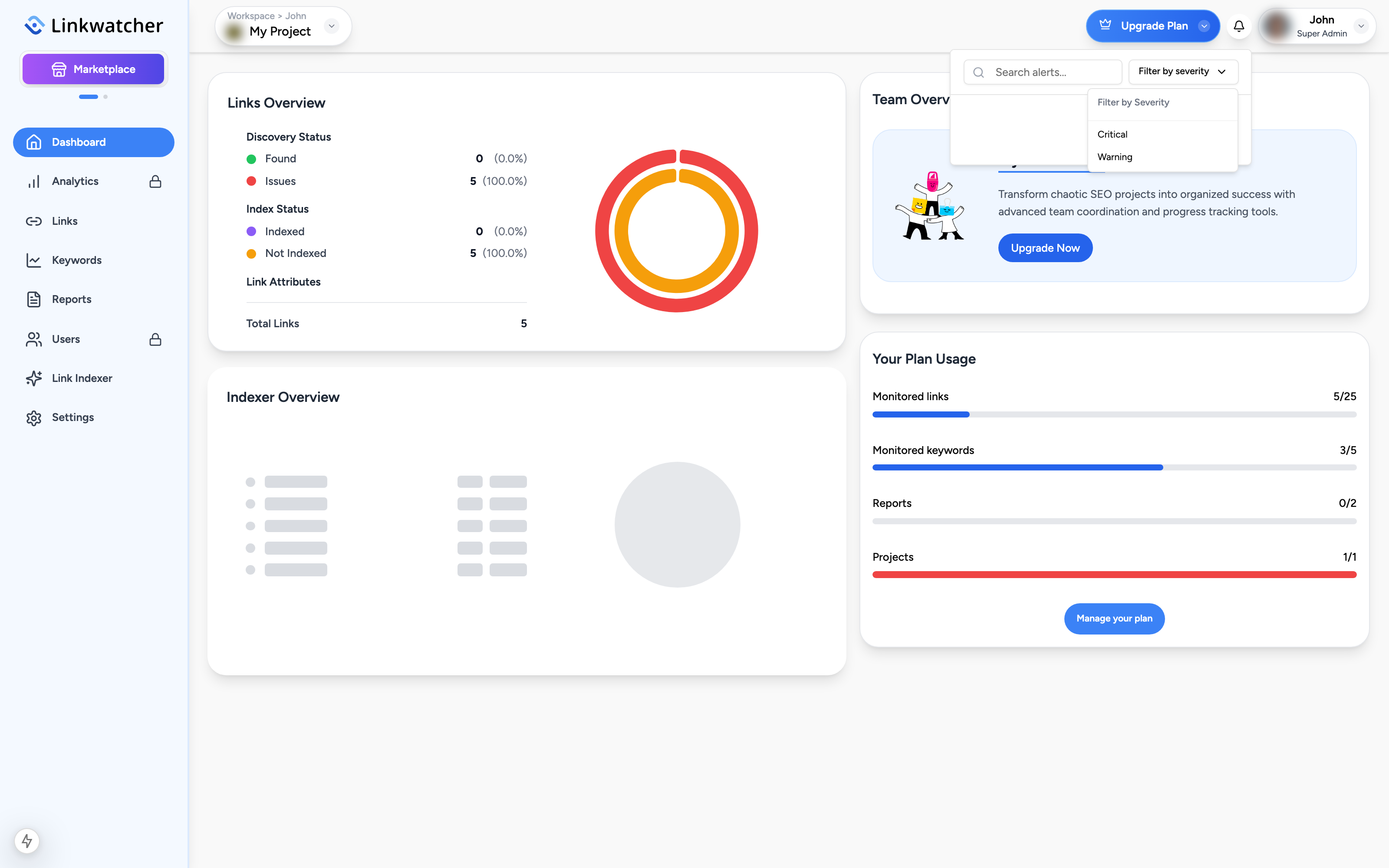
The panel has a search box and a severity filter:
- Type in the search box to find alerts by their text.
- Open the severity dropdown and pick Critical or Warning to see only that level.
- Use the pagination controls at the bottom to move through older alerts and change how many are shown per page.
Marking alerts read and dismissing them
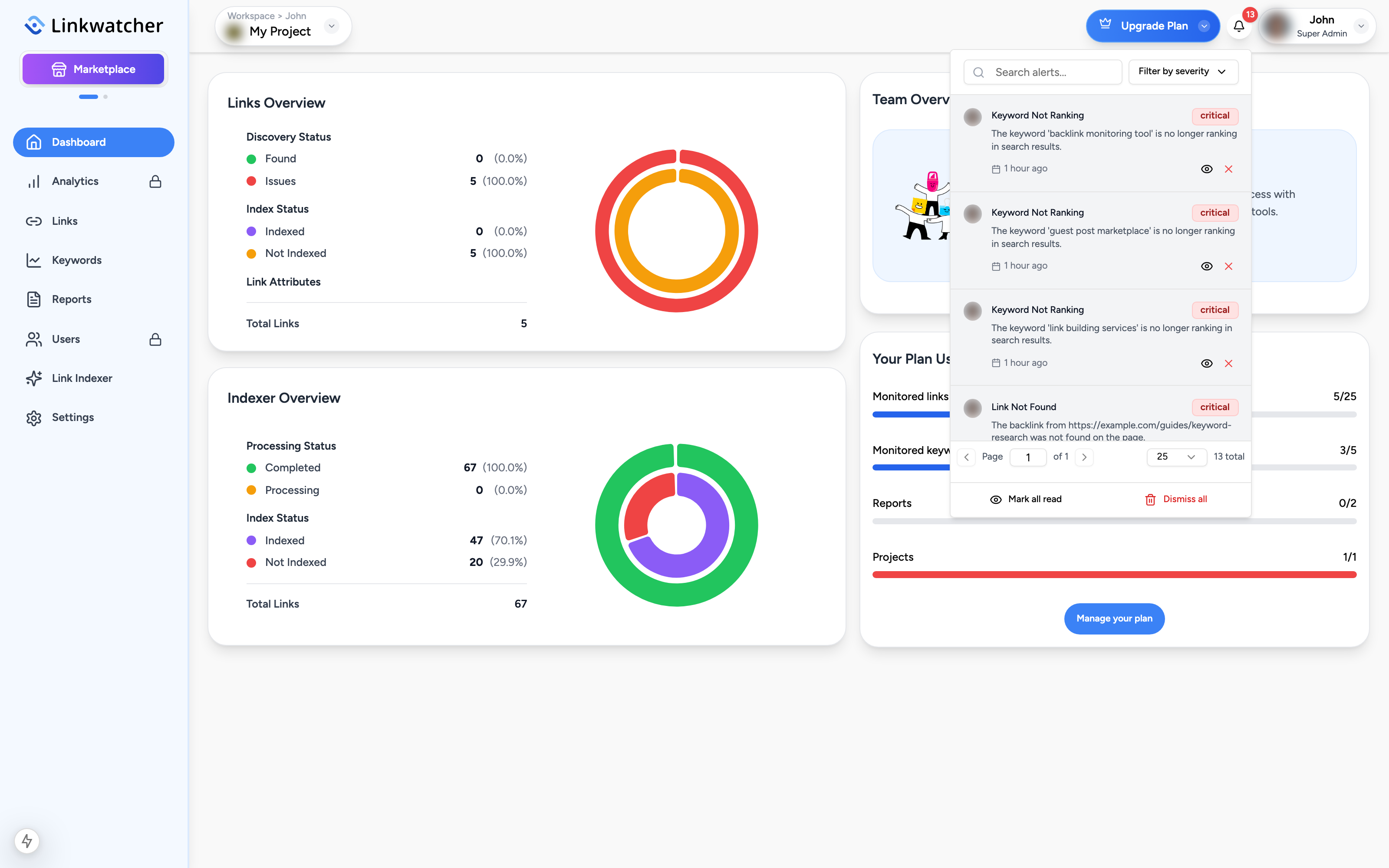
Unread alerts have a highlighted background and count toward the badge on the bell icon.
- Click the eye icon on an alert to mark just that one as read.
- Click the X icon to dismiss an alert you no longer need.
- Click Mark all read at the bottom of the panel to clear the unread state for everything at once.
Marketplace notifications
When you switch to Marketplace mode, the same bell shows marketplace notifications instead: new orders, order status changes, and payment events. Notifications can include the order number, the domain involved, and the amount. Depending on whether you are in advertiser or publisher view, you see the notifications for that role.
Note: Alerts are scoped to the selected project and workspace in Monitoring mode. If you switch projects, the bell shows that project's alerts.
Email notifications
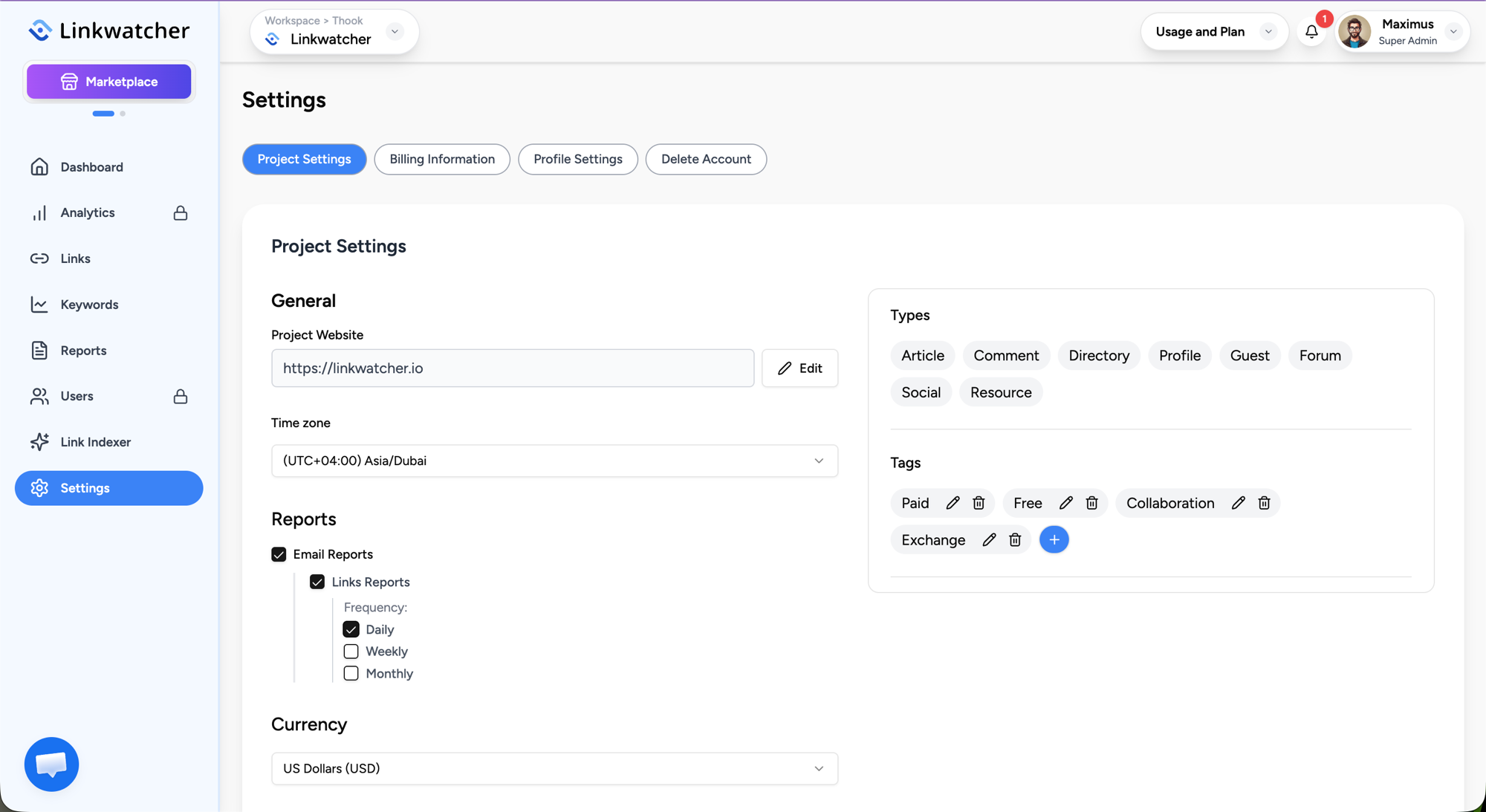
In-app alerts are always on. If you also want summaries in your inbox, open Settings > Project Settings, enable Email Reports, and choose Daily, Weekly, or Monthly frequency for Links and for Keywords. Emails are sent per project, so configure each project you want to hear about.