Place an order
The full Create Order flow, from content options through link selection to checkout, including fees and coupons.
Once you have found the right website and publisher, clicking Order Now opens the Create Order page. The flow has up to three steps: content, link selection, and order details.
Step 1: Provide your content
For a guest post you have two ways to supply the article, plus an optional add-on:
- Google Docs Link: paste a link to your document. The document must be shared as "Anyone with the link can view", otherwise the publisher cannot open it. To set this, open your document, click Share, choose "Anyone with the link", and set the access to Viewer.
- Paste Content: paste your formatted article directly into the editor. Formatting from Word or Google Docs is preserved, including the links inside the text.
- Professional content writing: toggle this option to have the article written for you. The writing fee shown for the domain is added to your order, and you skip providing content yourself.
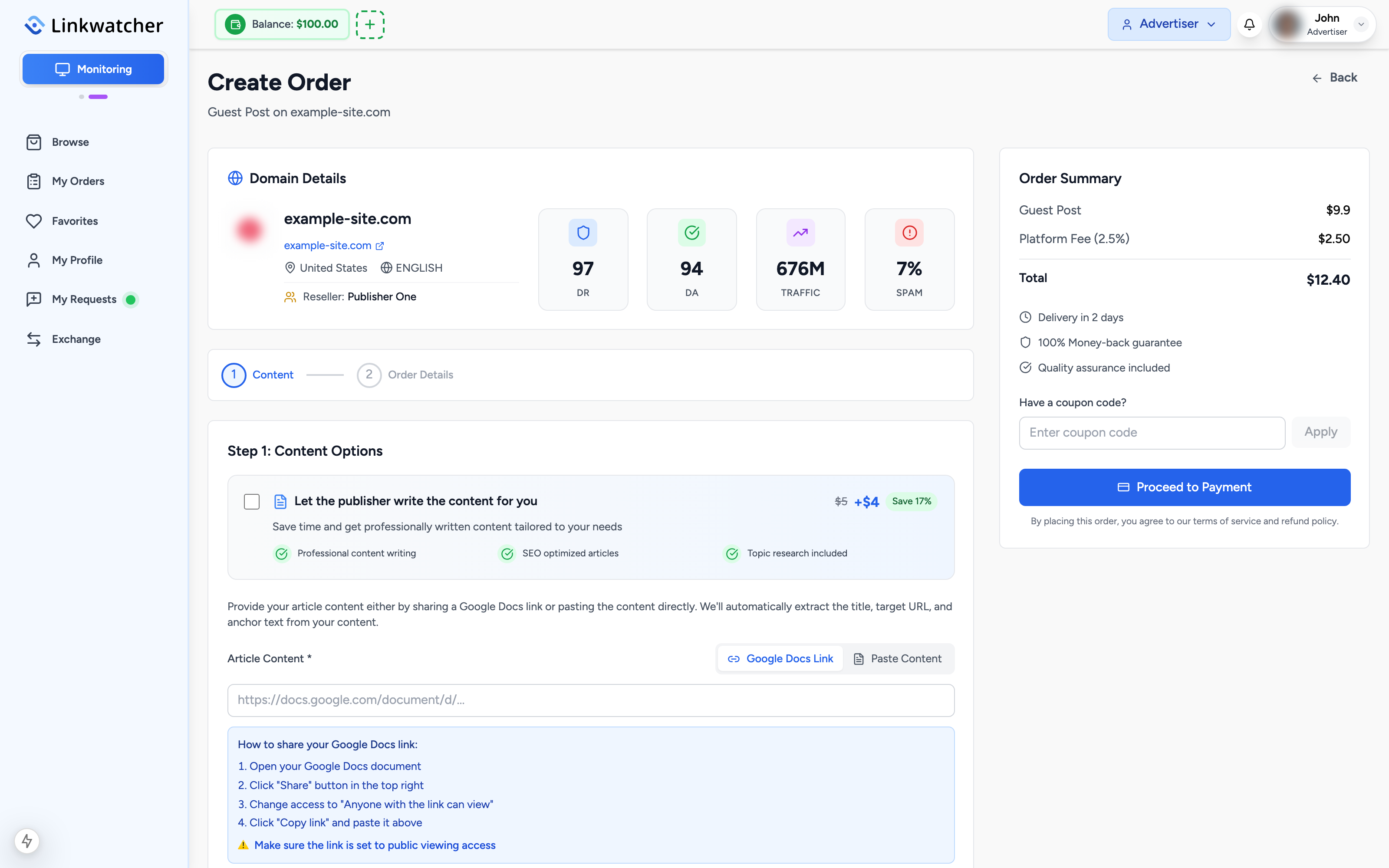
Warning: If your Google Docs link is not set to "Anyone with the link can view", your order will be delayed until the publisher can access it. The app shows a reminder before you continue.
For a link insertion you do not provide an article; you only specify where the link should point and what the anchor text should be.
Step 2: Select your target link
If the content you provided contains more than one link, an extra step appears: Select Target Link. Each link found in your article is listed with its anchor text and target URL.
- Review the list of detected links, for example a link to
https://example.com/productswith the anchor text "best project tools". - Click the link you want this order to count as the target link.
- Click continue. You can still edit the details in the next step.
If your content contains only one link, this step is skipped and that link is used automatically.
Step 3: Order details
The final step confirms the specifics of your placement:
- Target URL: the page on your website the link should point to, for example
https://example.com/pricing. - Anchor Text: the clickable text, up to 100 characters. If we detected it from your content it is pre-filled and still editable.
Review the price
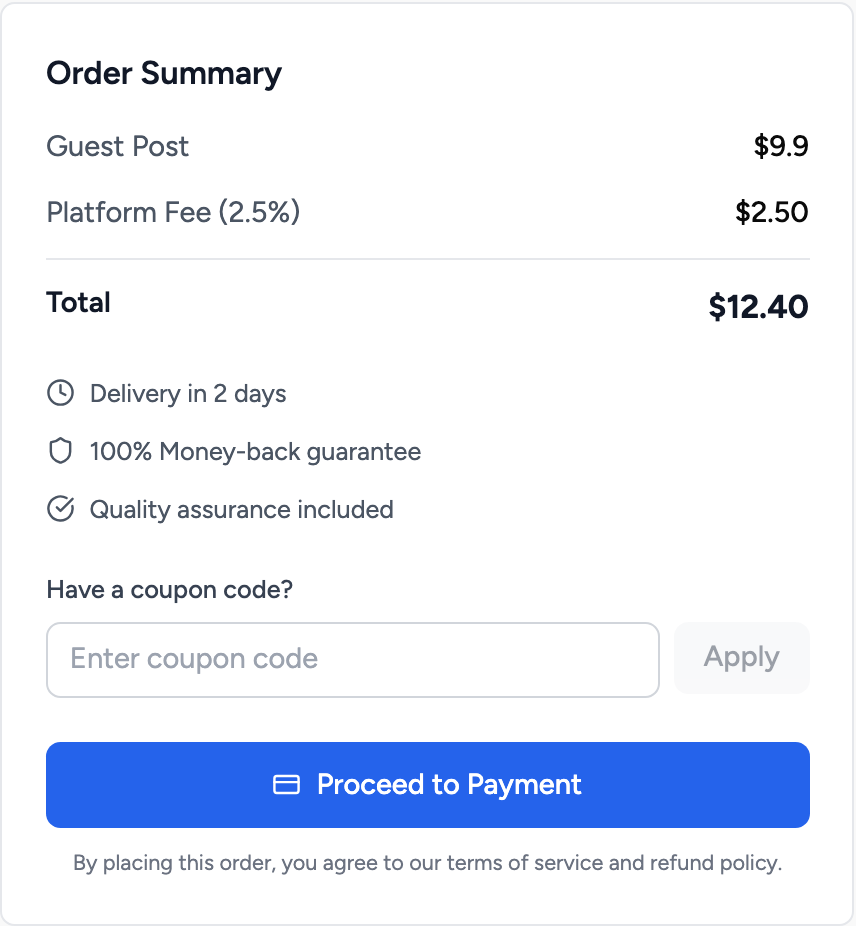
The order summary shows exactly what you will pay:
- The publisher's price for the service, plus the content writing fee if you chose that add-on.
- A platform fee of 2.5% of the subtotal, with a minimum of $2.50. If your organization is on the Agency or Enterprise monitoring plan, the platform fee is waived: the summary shows it as $0.00 with a "Waived" label and you pay the publisher's price only.
If you have a coupon code, enter it in the coupon field and click apply. Coupons discount the platform fee: depending on the coupon it can be a percentage off, a fixed amount off, or the full platform fee waived.
Note: Coupons never reduce the publisher's price, only the platform fee.
Pay and submit
- Check the summary one last time.
- Click Proceed to Payment.
- You are taken to the payment page to choose a payment method. If your account balance fully covers the total, a Pay from your balance confirmation appears instead so you can pay instantly. Both paths are covered in the payments article.
Your money is protected
Every marketplace order is covered by a 100% money-back guarantee. You pay upfront, but the publisher is only paid out after the work is delivered and accepted. If the order is cancelled or rejected, the full amount is refunded to your account balance.