Manage your listings
Use the My Domains page to edit prices and details, understand listing statuses, and keep your sites active.
The My Domains page is where you maintain all of your marketplace listings: update prices, fix details, verify ownership, and switch listings on or off.
Page overview
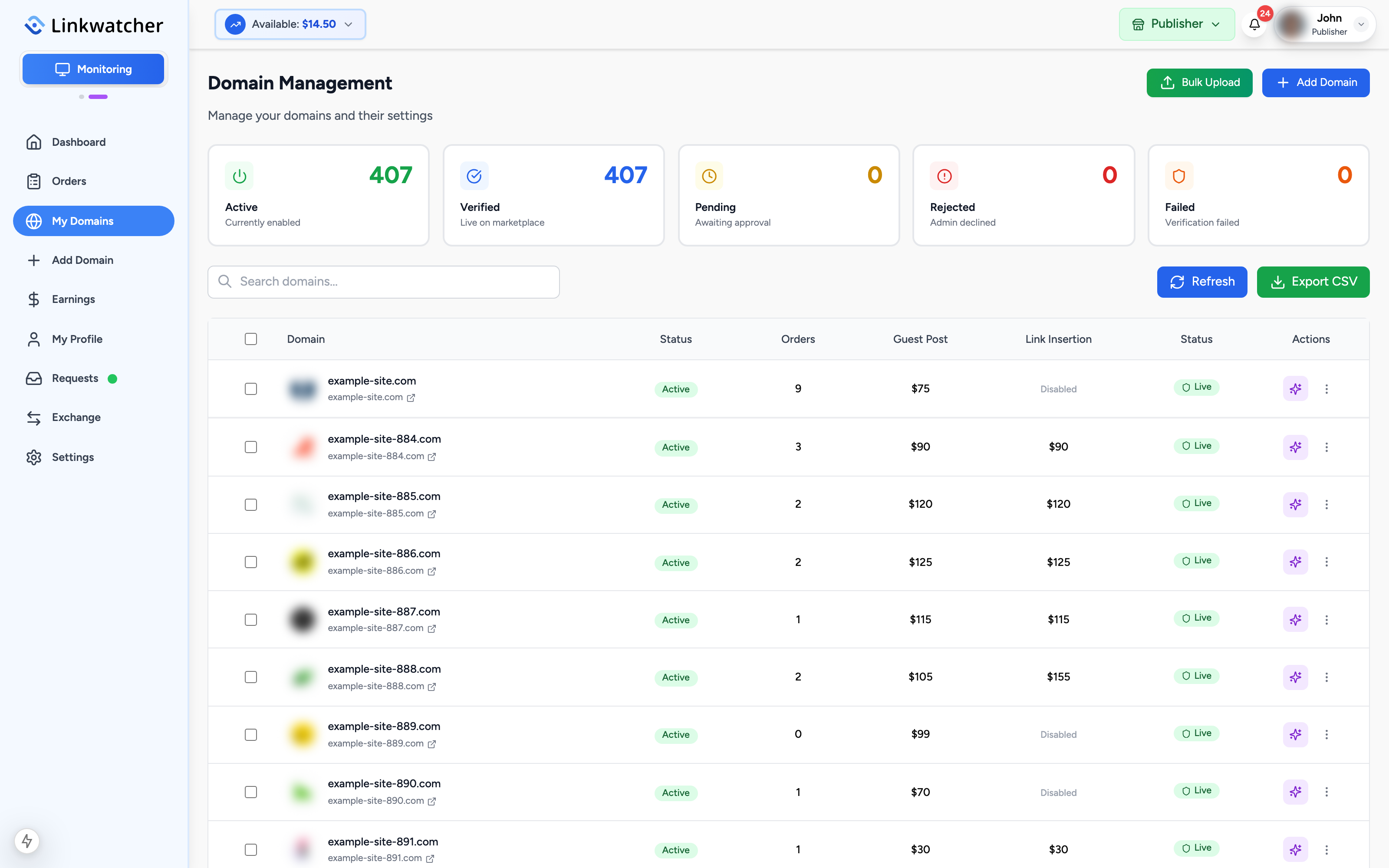
Open My Domains from the publisher sidebar. At the top you will find five summary cards that double as filters. Click a card to show only those domains, click it again to clear the filter:
- Active: listings currently enabled.
- Verified: listings that are live on the marketplace.
- Pending: listings awaiting team approval.
- Rejected: listings the team declined.
- Failed: listings where ownership verification failed.
Below the cards there is a search box and the domain list. The Add Domain and Bulk Upload buttons in the header let you add more sites.
Understand listing statuses
Each domain row shows two kinds of status.
Visibility is controlled by you:
- Active: the listing can be found and ordered by buyers.
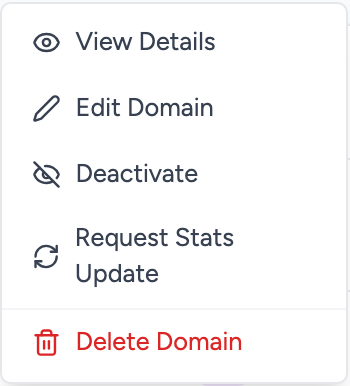
- Inactive: the listing is hidden. Use the row menu to activate or deactivate, or select several domains and use the bulk activate and deactivate buttons.
Approval and verification is controlled by the review process:
- Pending Approval: the team has not reviewed the listing yet.
- Rejected: the team declined it. Hover the badge to see the reason, then fix the issue and contact support if needed.
- Owner (Verify Needed): approved, but you still need to prove domain ownership before it can be listed.
- Owner (Verified): approved and verified, live in the marketplace.
- Reseller (Approved): approved reseller listing, live in the marketplace.
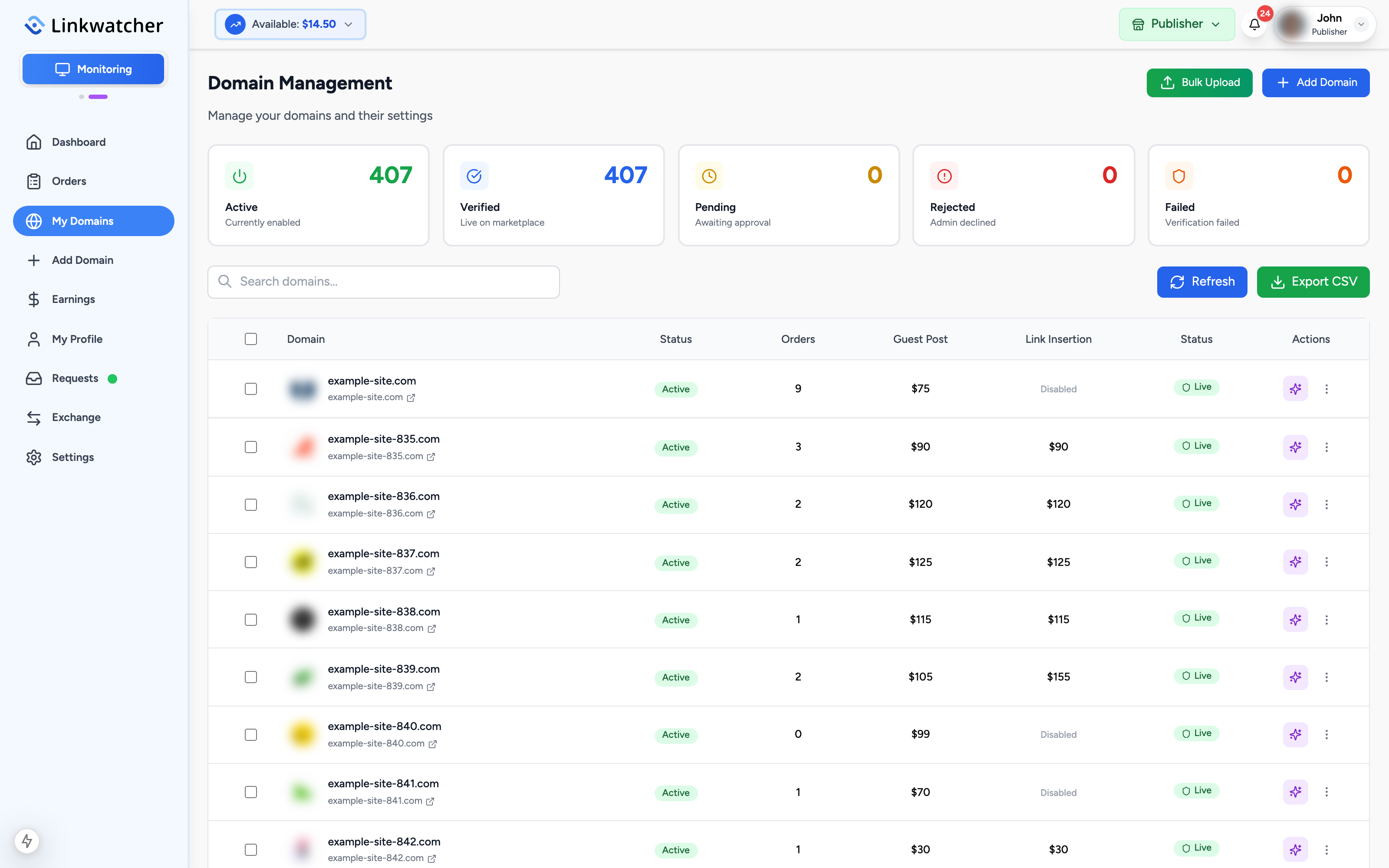
Note: A listing is only visible to buyers when it is approved, verified (for owner listings), and set to Active.
Edit prices and details
- Find the domain in the list (use search if you have many).
- Click Edit on the row.
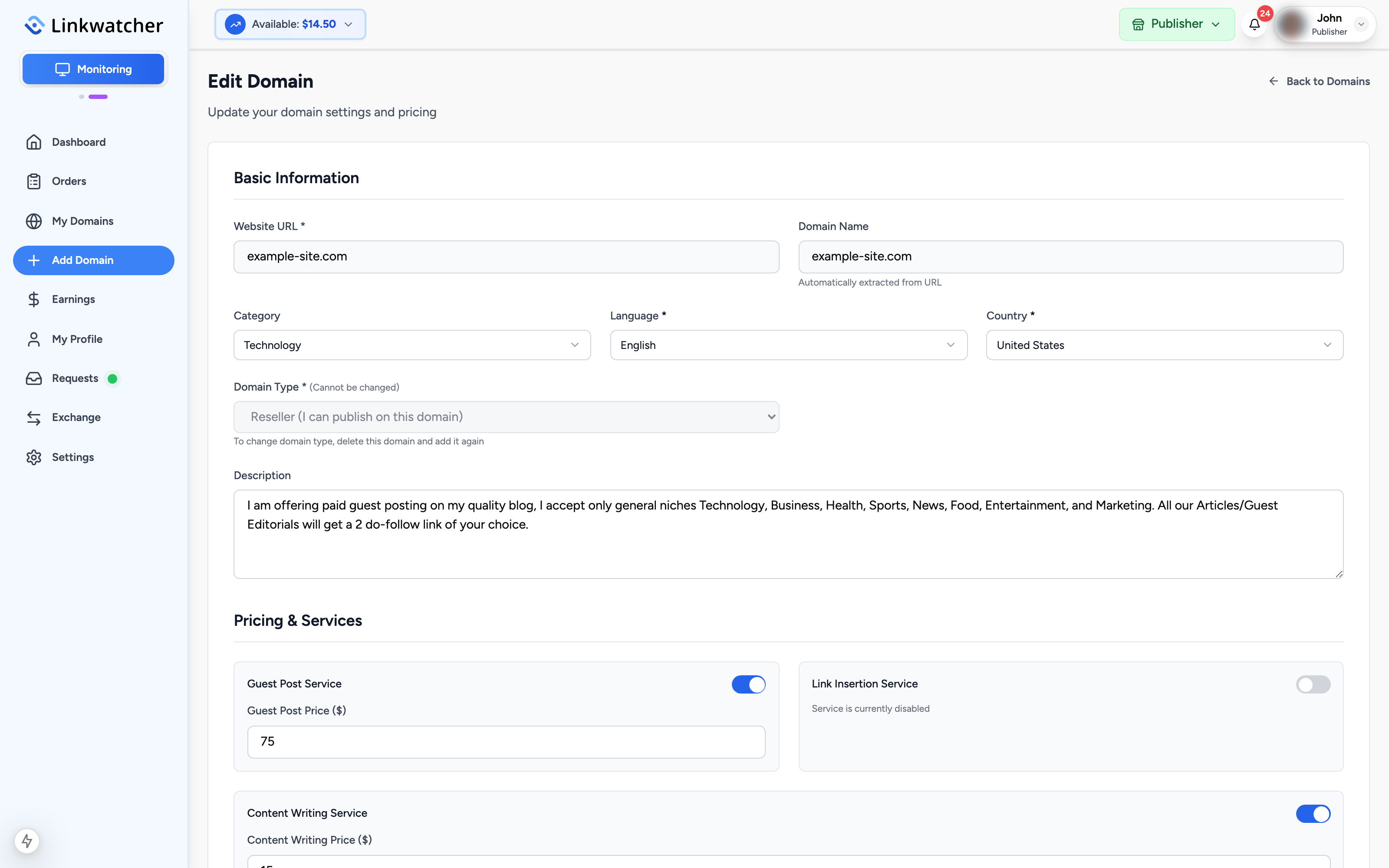
- The domain form opens with your current values: pricing, service toggles, word counts, turnaround time, requirements, and example posts.
- Change what you need, for example raise your guest post price from $25.00 to $30.00.
- Click Update to save. Changes apply to new orders; orders already placed keep their original price.
Verify a domain later
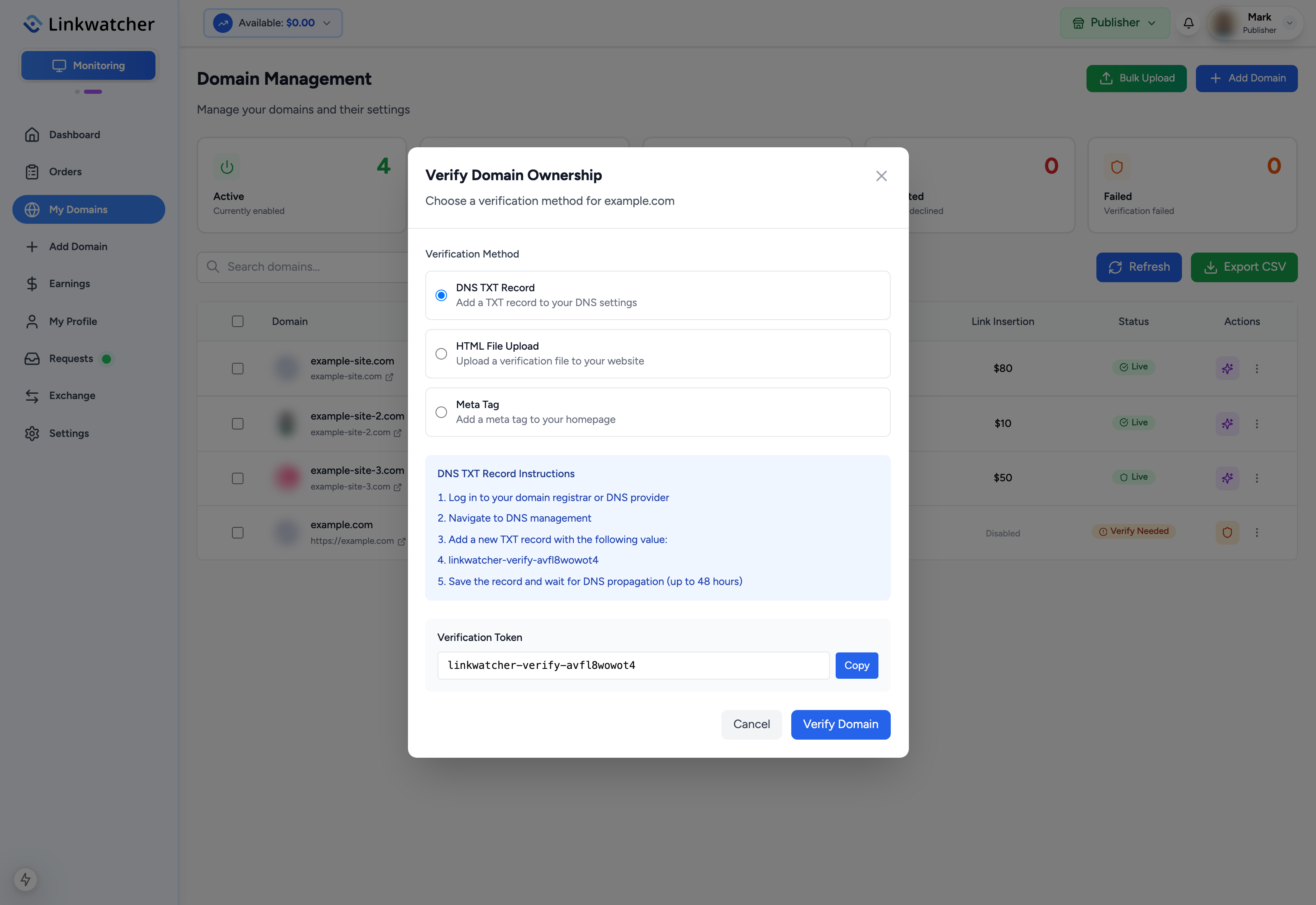
If you skipped verification when adding an owner domain, the row shows a Verify button:
- Click Verify on the domain row.
- Choose meta tag, DNS TXT record, or HTML file upload, and follow the instructions with your verification token.
- Click verify to run the check. If it fails, the status becomes Failed and you can retry after fixing the setup.
Other row actions
- View details: see the full listing as stored, including rejection details for declined domains.
- Feature: promote an approved domain so it gets extra visibility in the marketplace.
- Request stats update: ask for the domain metrics shown to buyers to be refreshed.
- Delete: remove a listing entirely.
- Bulk actions: tick the checkboxes on several rows to activate, deactivate, or delete them together.
Warning: Deactivating or deleting a listing does not cancel orders that are already in progress. Finish open orders first, since unfinished orders affect the completion rate buyers see.