Browse buyer requests
Find buyer requests for your domains and send offers to win orders directly.
Advertisers can post requests for placements on specific domains they want links from. If one of those domains is yours, you can respond with an offer instead of waiting for a direct order. Accepted offers turn into regular orders.
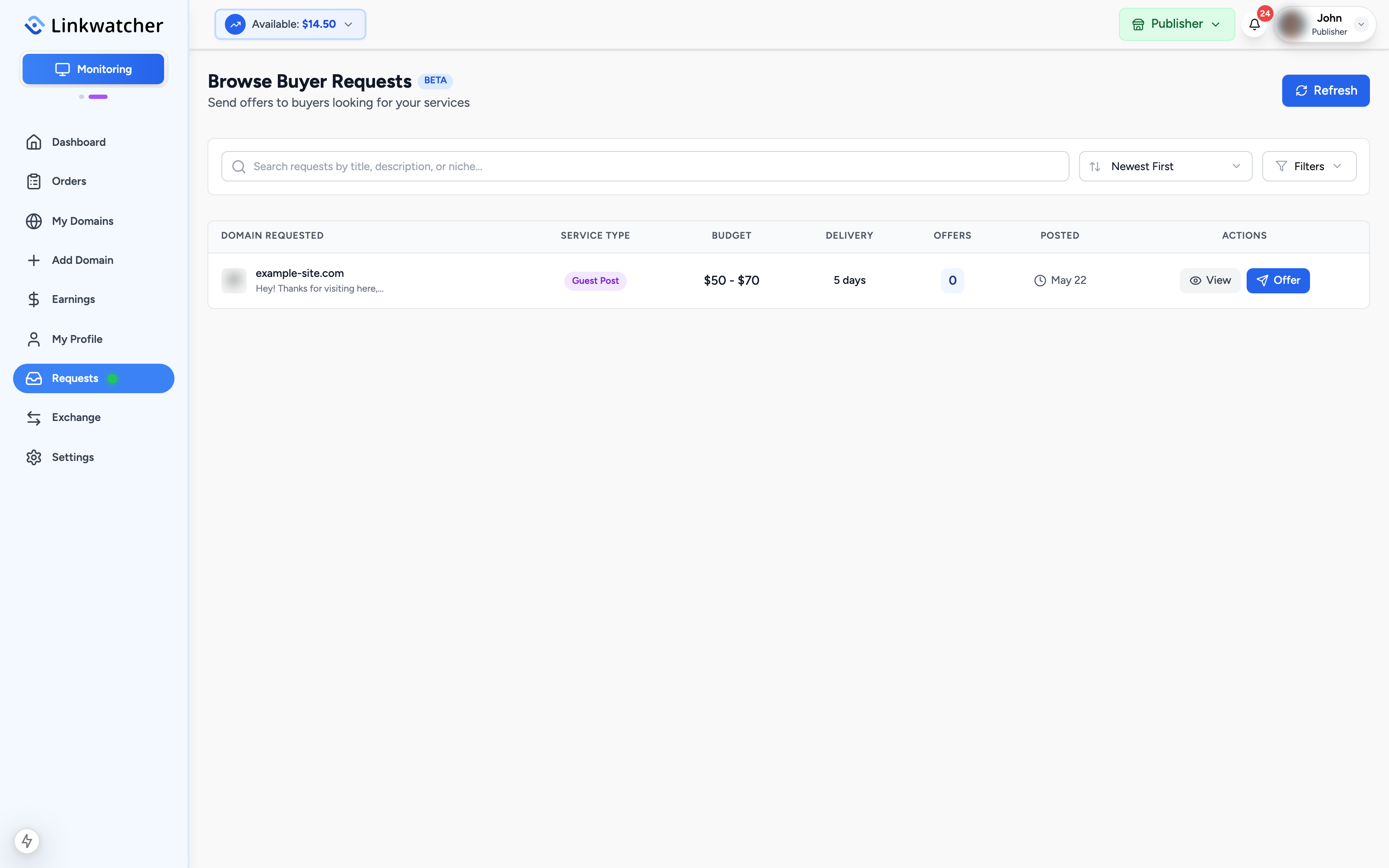
Open the Requests page
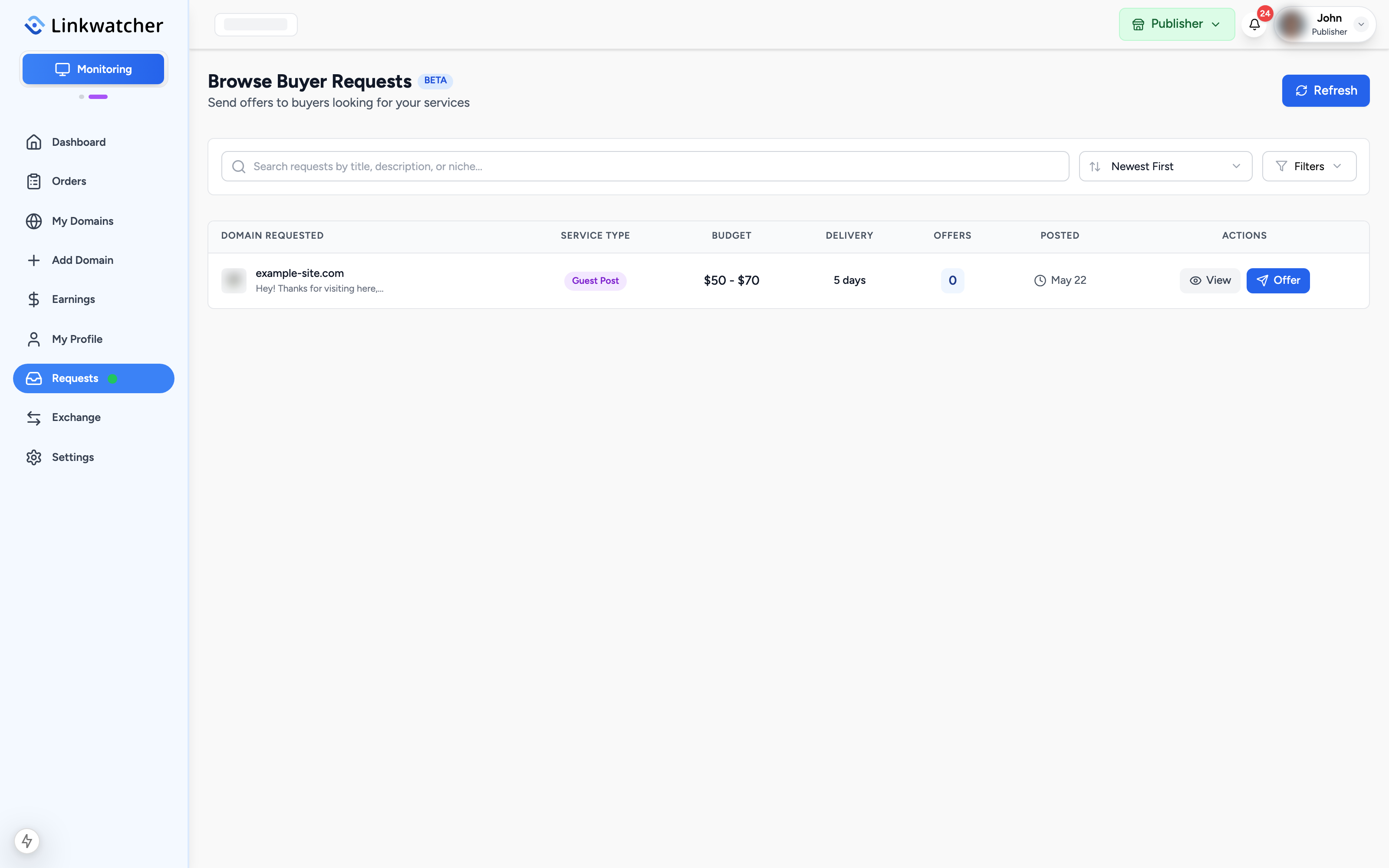
In Publisher mode, click Requests in the sidebar. The page lists all active buyer requests in a table with:
- Domain Requested: the website the buyer wants a placement on.
- Service Type: guest post or link insertion.
- Budget: the buyer's price range, for example $50 - $150, or "Negotiable".
- Delivery: how many days the buyer expects delivery in.
- Offers: how many publishers have already made an offer.
- Posted: when the request was created.
Search, sort, and filter
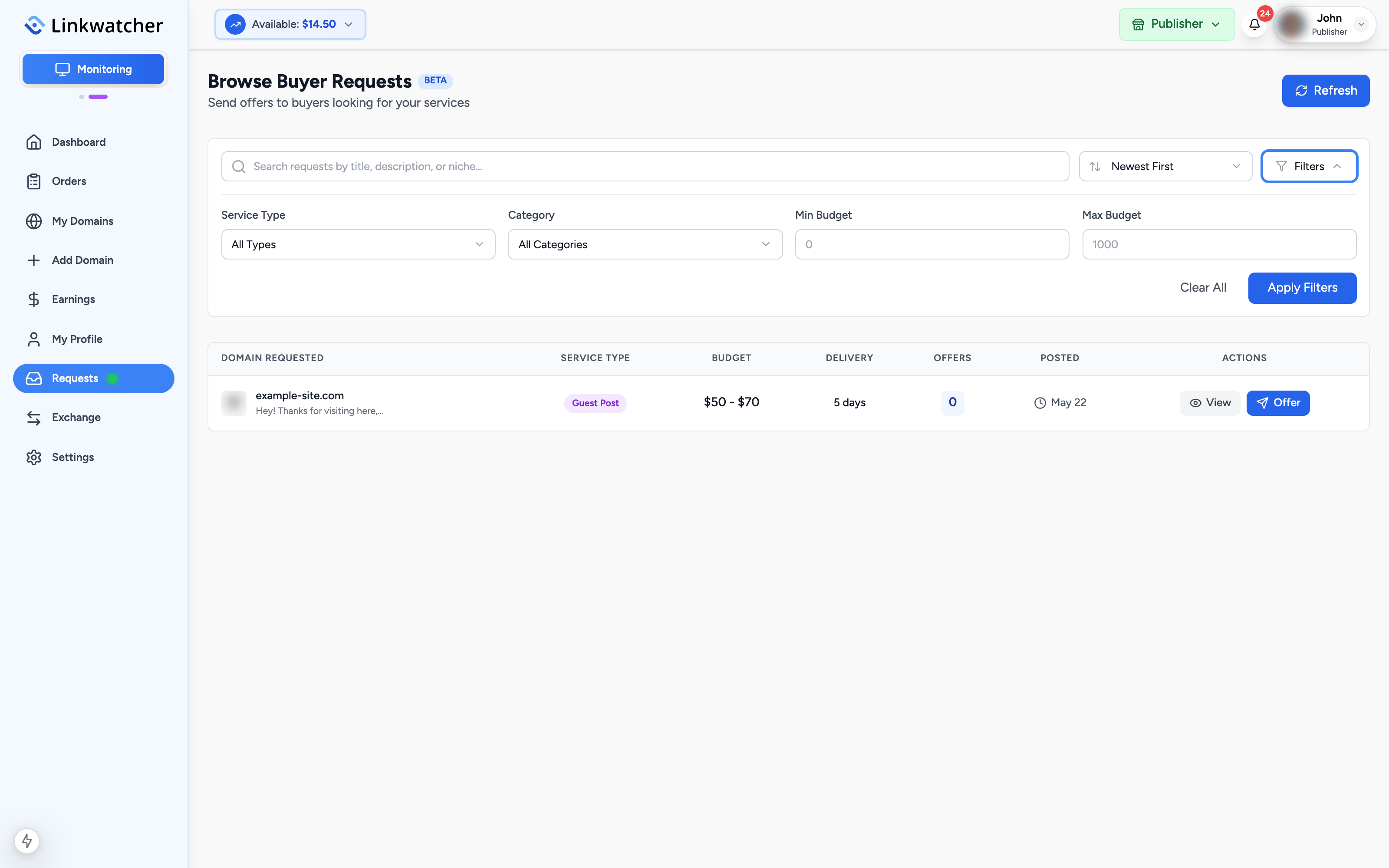
- Use the search box to find requests by title, description, or niche.
- Sort by newest, oldest, or most offers.
- Click Filters to narrow by service type, category, or budget range, then click Apply Filters.
Review a request
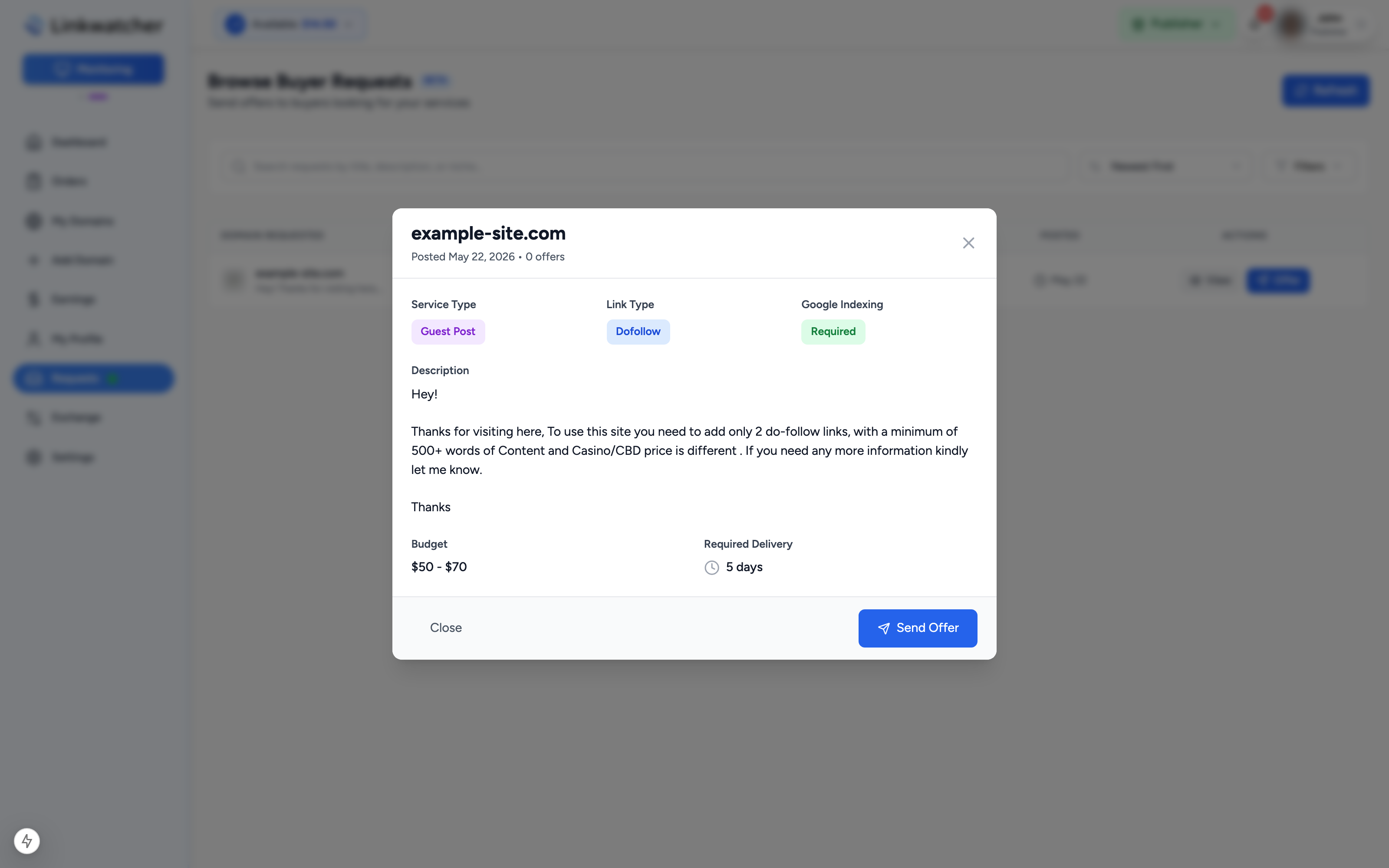
Click View on a row to read the full request: the buyer's description, requirements, budget, and expected delivery time. From the details view you can go straight to sending an offer.
Send an offer
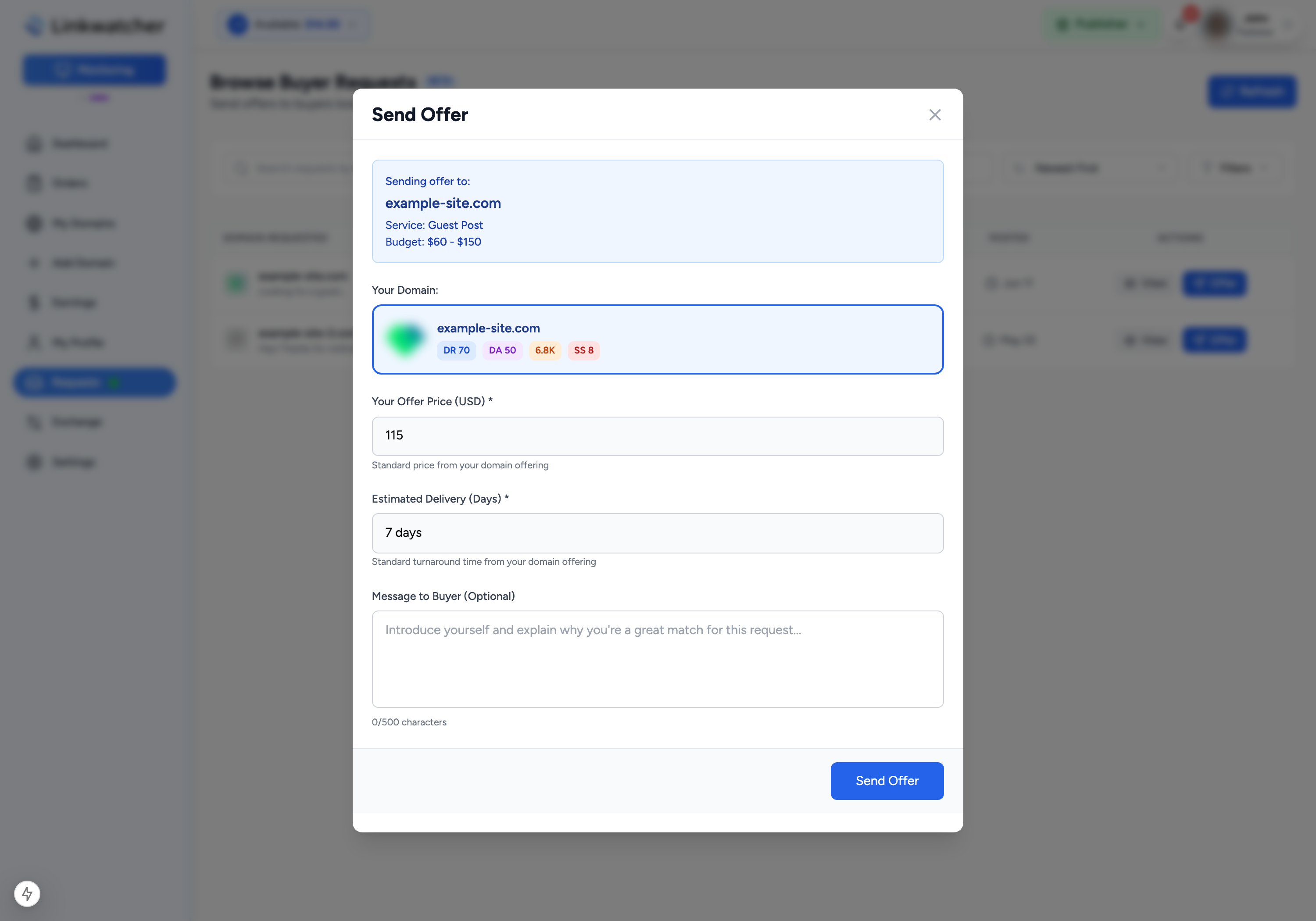
- Click Offer on the request (or Send Offer in the details view).
- Your matching domain listing is selected automatically, and the price and delivery time are prefilled from that listing. Adjust them if needed.
- Optionally add a message to the buyer explaining your offer.
- Click send.
A few rules apply:
- You can only offer on a request if you have that exact domain listed in your account, and the listing is approved (and verified, for owner listings). If your listing is still pending approval or needs verification, the dialog tells you what to fix first.
- Your offer price cannot exceed the buyer's maximum budget. If your listing price is above their budget, lower the offer to fit.
- You can send one offer per request.
Note: Requests are tied to specific domains. If a request asks for a domain you do not have listed yet, add it first via Add Domain, get it approved and verified, then return to send your offer.
Track your offers
After you send an offer, the request row shows its status instead of the Offer button:
- Offer Pending: the buyer has not decided yet.
- Offer Accepted: the buyer accepted; they can now place the order.
- Ordered: the buyer placed and paid for the order. It appears on your Orders page and follows the normal fulfillment flow with your usual deadline.
- Offer Rejected: the buyer declined this offer.
Note: Once a buyer orders from your offer, treat it like any other order: accept it promptly and deliver before the deadline. The outcome counts toward your completion rate.