Link Indexer
Submit links for fast indexing using campaigns and credits, and accept the required terms before your first submission.
The Link Indexer helps search engines discover your pages faster. You organize links into campaigns, submit them with credits, and watch their indexing status update over time.
Open the indexer
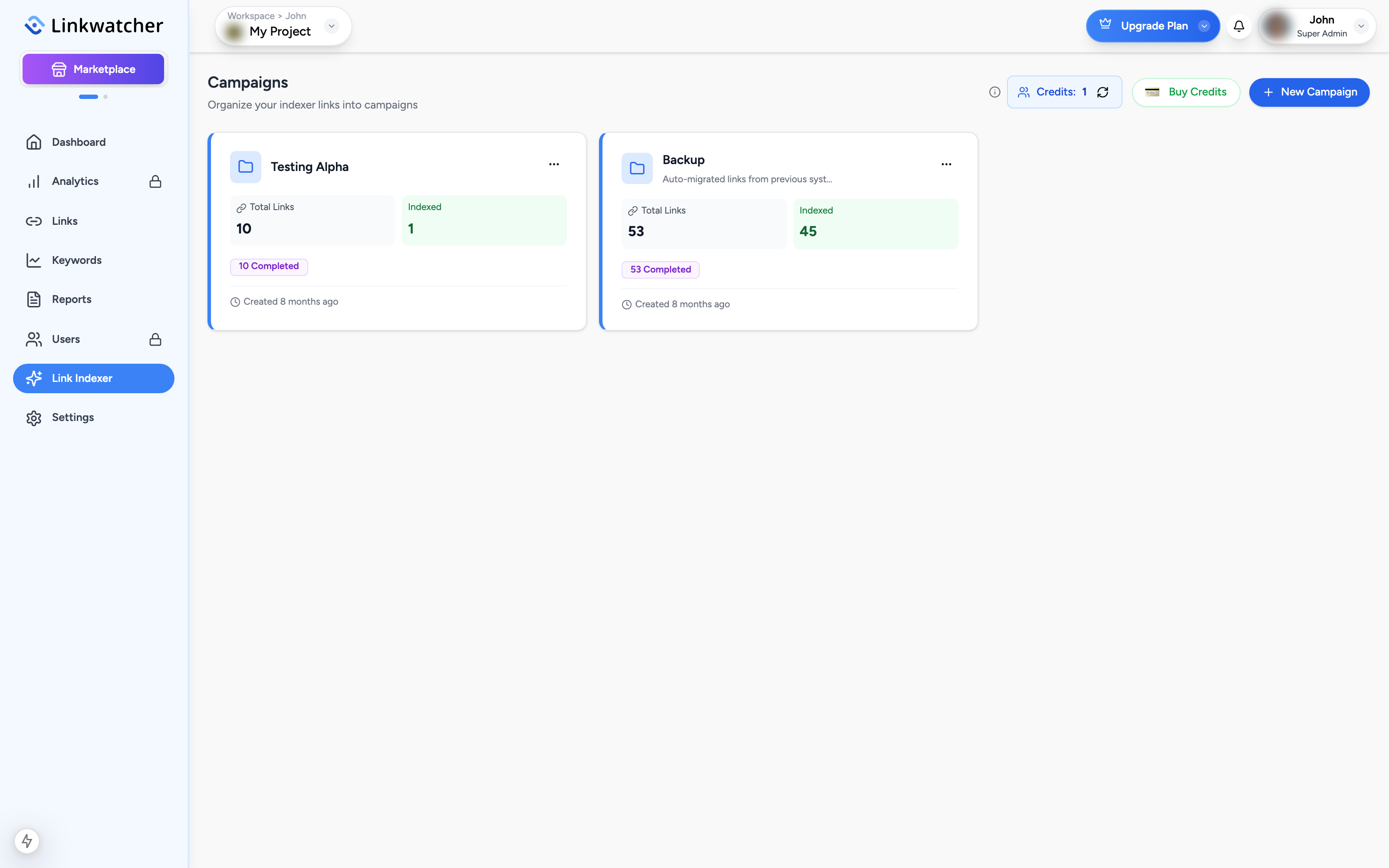
Click Link Indexer in the sidebar. The page lists your campaigns and shows your workspace credit balance in the header.
Note: Indexer access is granted per workspace member. If you see a locked screen saying access is required, ask your workspace administrator to grant you indexer access.
Credits
Submitting one link costs one credit. Credits are shared across the whole workspace: anyone added to the workspace can use them.
- Click Buy Credits.
- Choose a credit package. Each package shows the price, the number of credits, and the price per credit.
- Complete the purchase. Your balance updates right away, and you can refresh it any time with the small refresh icon next to the balance.
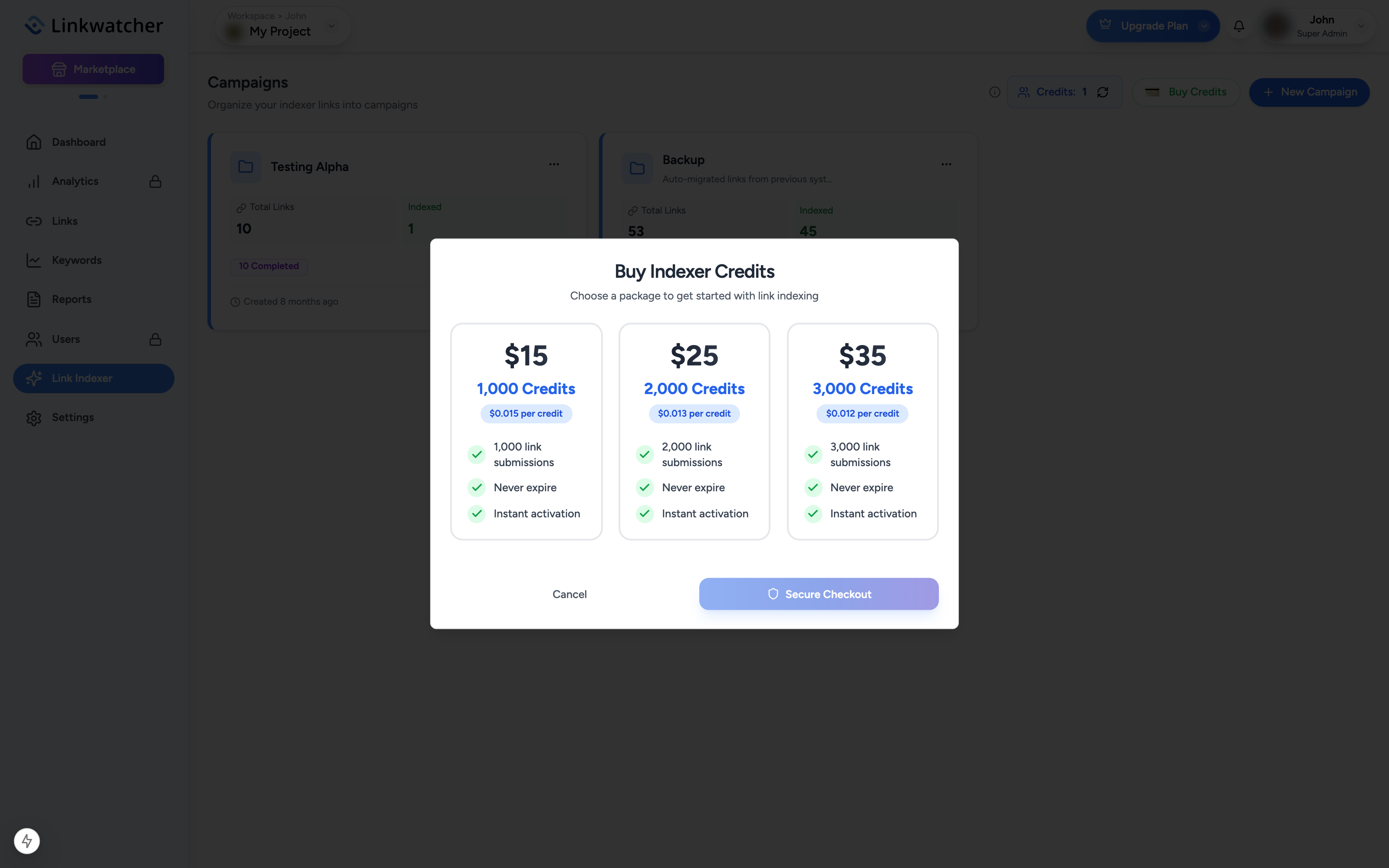
If you try to submit more links than you have credits, the submission is blocked and the Buy Credits dialog opens so you can top up.
Create a campaign
Campaigns keep related links together, for example one campaign per client or per content batch.
- Click New Campaign.
- Give it a name and an optional description.
- The campaign appears as a card showing Total Links, Indexed count, and badges for Pending, Submitted, and Completed links.
Accept the Terms of Service
Before your first link submission, Linkwatcher shows a Terms of Service dialog. It lists the prohibited content categories (adult content, gambling and betting in any form, fraud, phishing, malware, and other unlawful content) and explains how violations are handled.
You must tick all four acknowledgement checkboxes, then click Agree & Continue. This is required once; after you accept, submissions go straight through.
Warning: Submitting URLs in a prohibited category can lead to refused submissions, account review, or account freezing. Only submit lawful URLs you are responsible for.
Submit links
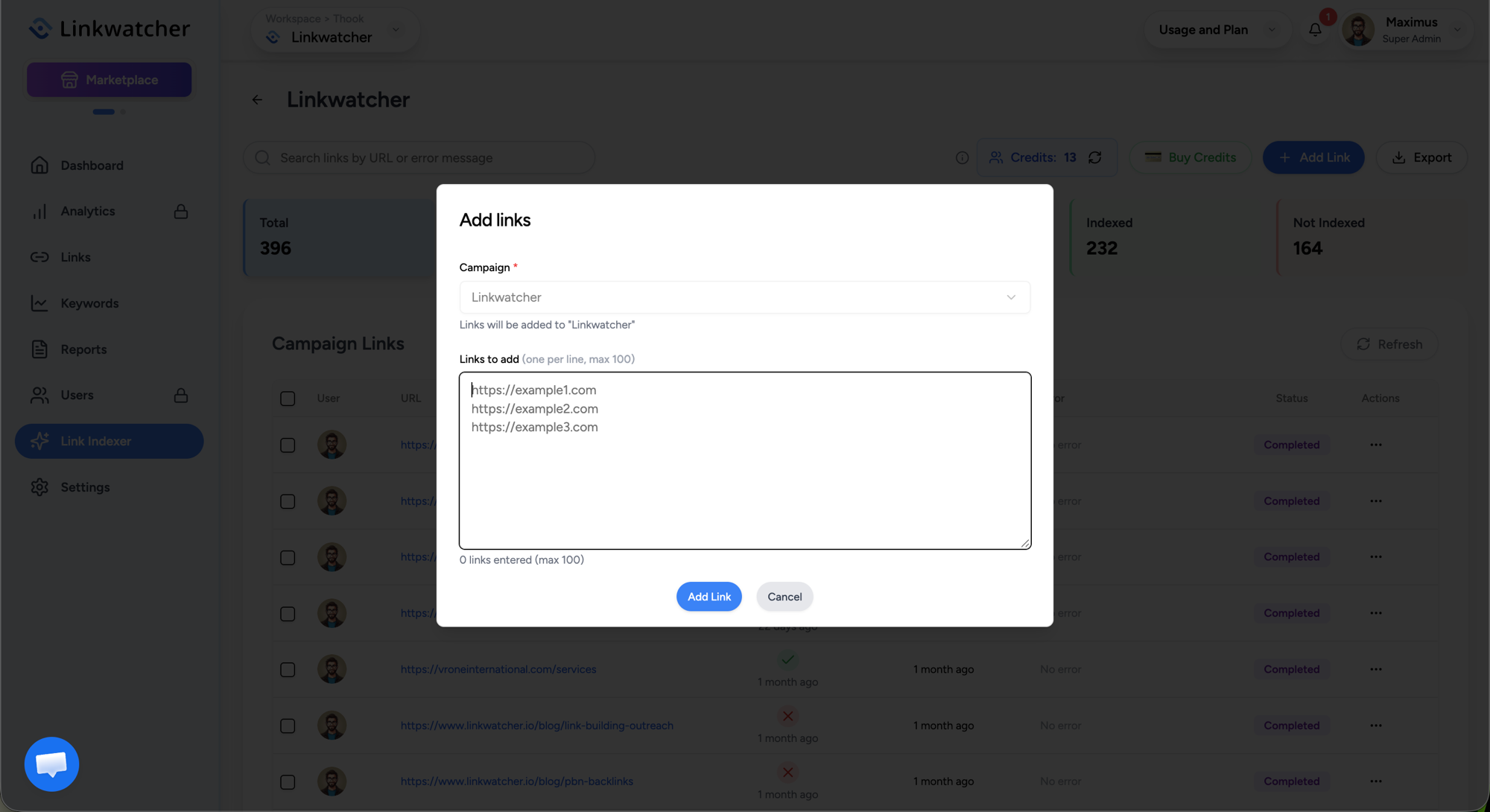
- Open a campaign and click Add Link.
- Paste your URLs in the text area, one per line, for example
https://example.com/new-page. - Click submit. One credit is deducted per link added.
You can also send monitored backlinks to the indexer directly from the Links page: use Submit for Indexing in a row menu, or select several links and use Bulk Actions > Submit for Indexing.
Track indexing progress
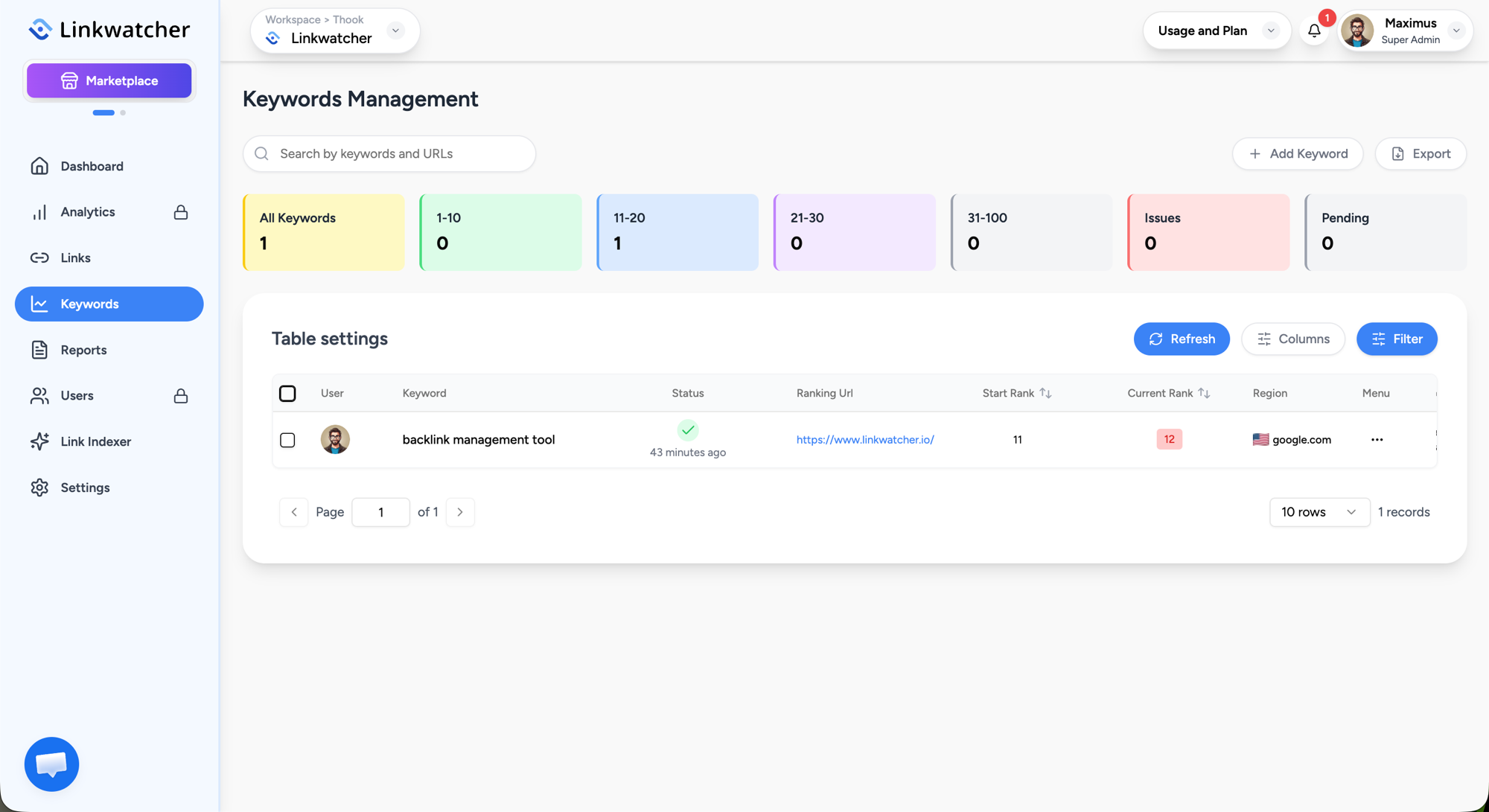
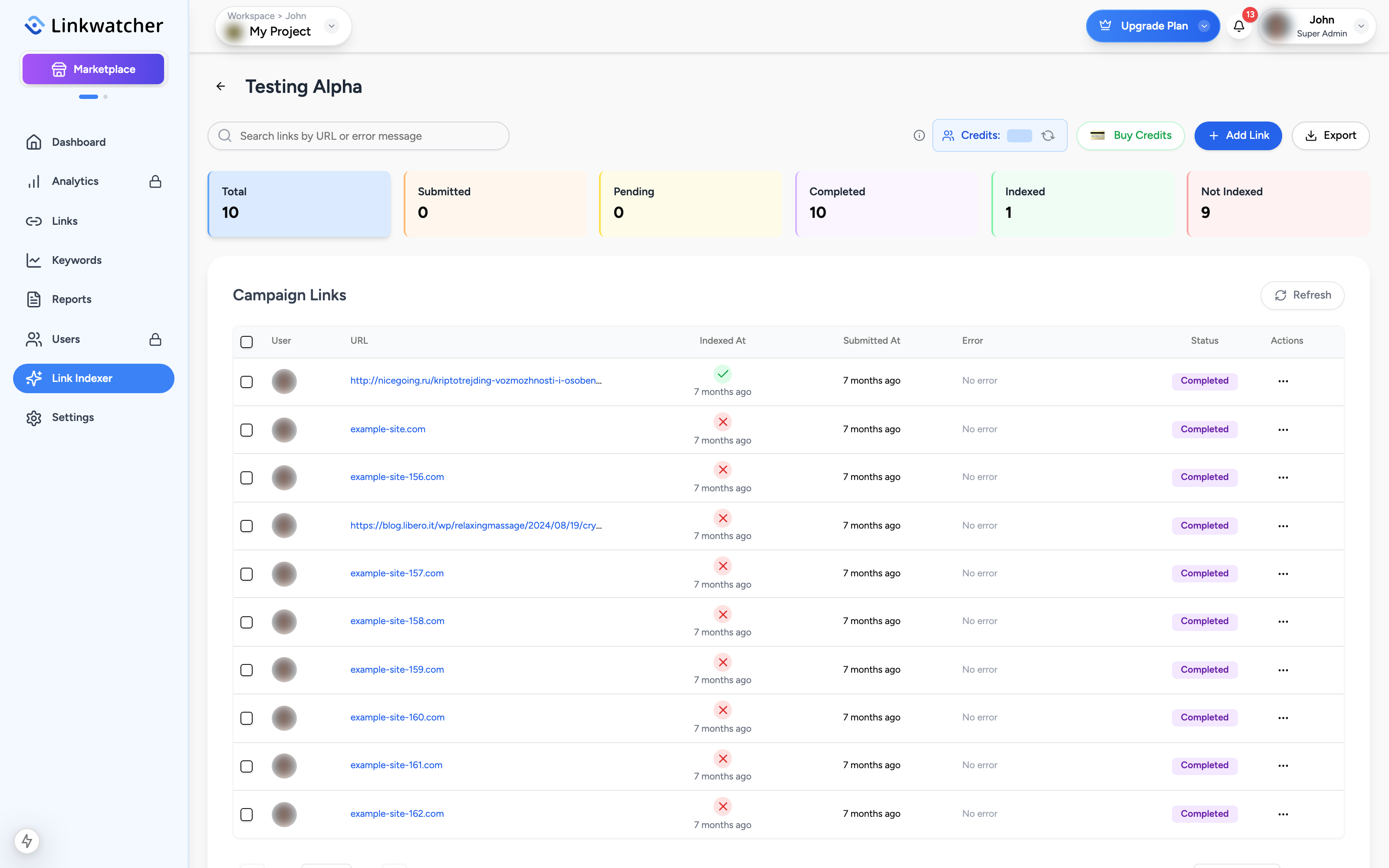
Inside a campaign, status cards let you filter links by Submitted, Pending, Completed, Indexed, and Not Indexed. The table shows each URL with its status, the time it was submitted, and the time it was found indexed. Use Export to download the campaign results.
The dashboard's Indexer Overview panel (see Analytics and reports) summarizes the same numbers across the project so you can check progress without opening the indexer.
Note: Occasionally the indexing service is paused for maintenance. A banner at the top of the indexer page tells you when submissions are temporarily unavailable.