Add your domains
List a website on the marketplace step by step, set your pricing and requirements, and complete verification and review.
Each website you list becomes a marketplace listing that advertisers can order guest posts and link insertions from. Adding a domain takes a few minutes and follows a short wizard: enter the URL, confirm the basic information, set your prices, and define your content requirements.
Step 1: Enter your website
- In Publisher mode, click Add Domain in the sidebar (or the Add Domain quick action on the dashboard).
- Enter your website address, for example example.com. The address is cleaned up automatically (https is added and www is removed).
- Click Continue. Linkwatcher analyzes the site and tries to detect its category, language, and country for you.
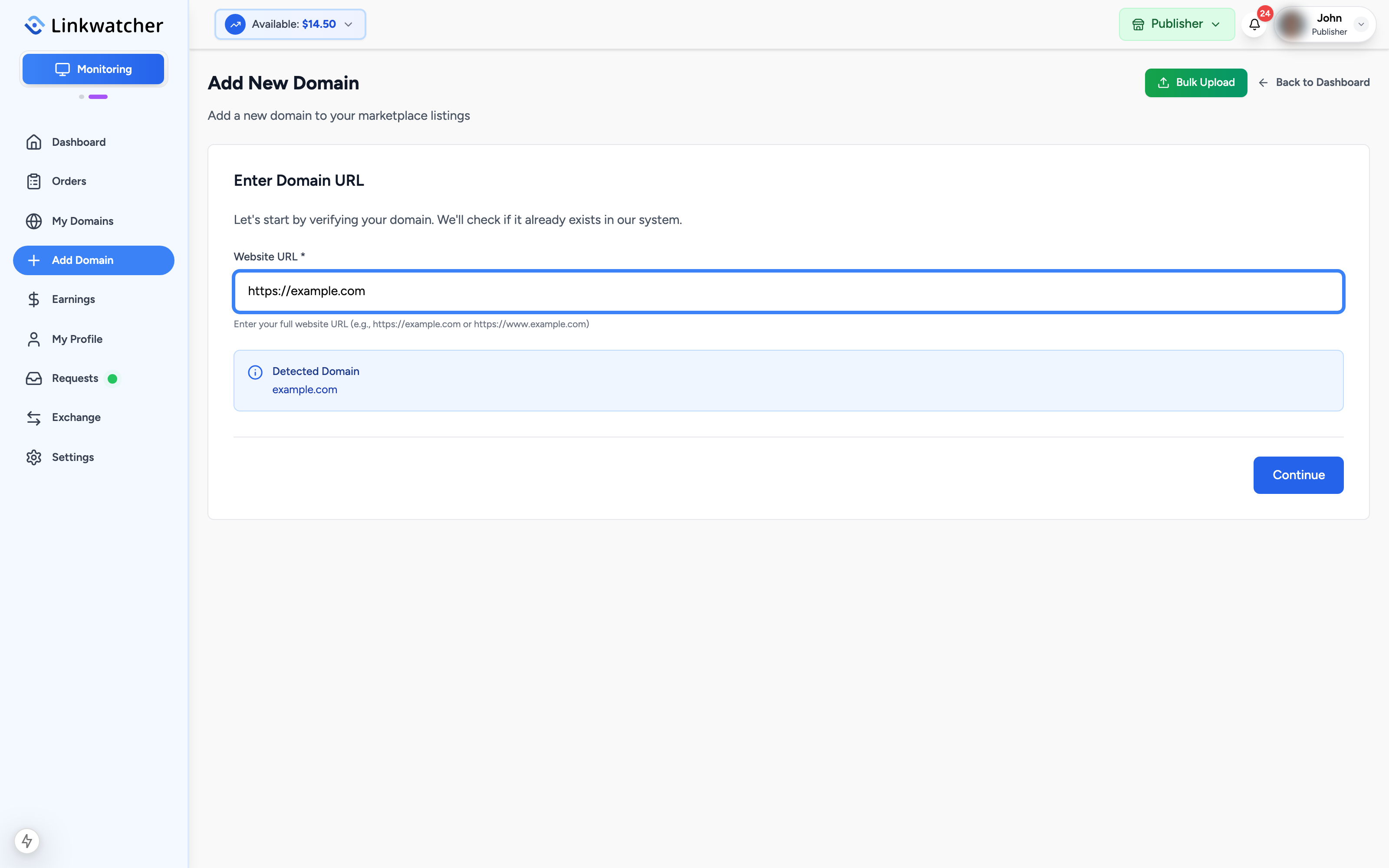
If the domain is already known to the marketplace, you are told so. A domain can have only one owner, but several publishers can list the same domain as resellers.
Step 2: Basic information
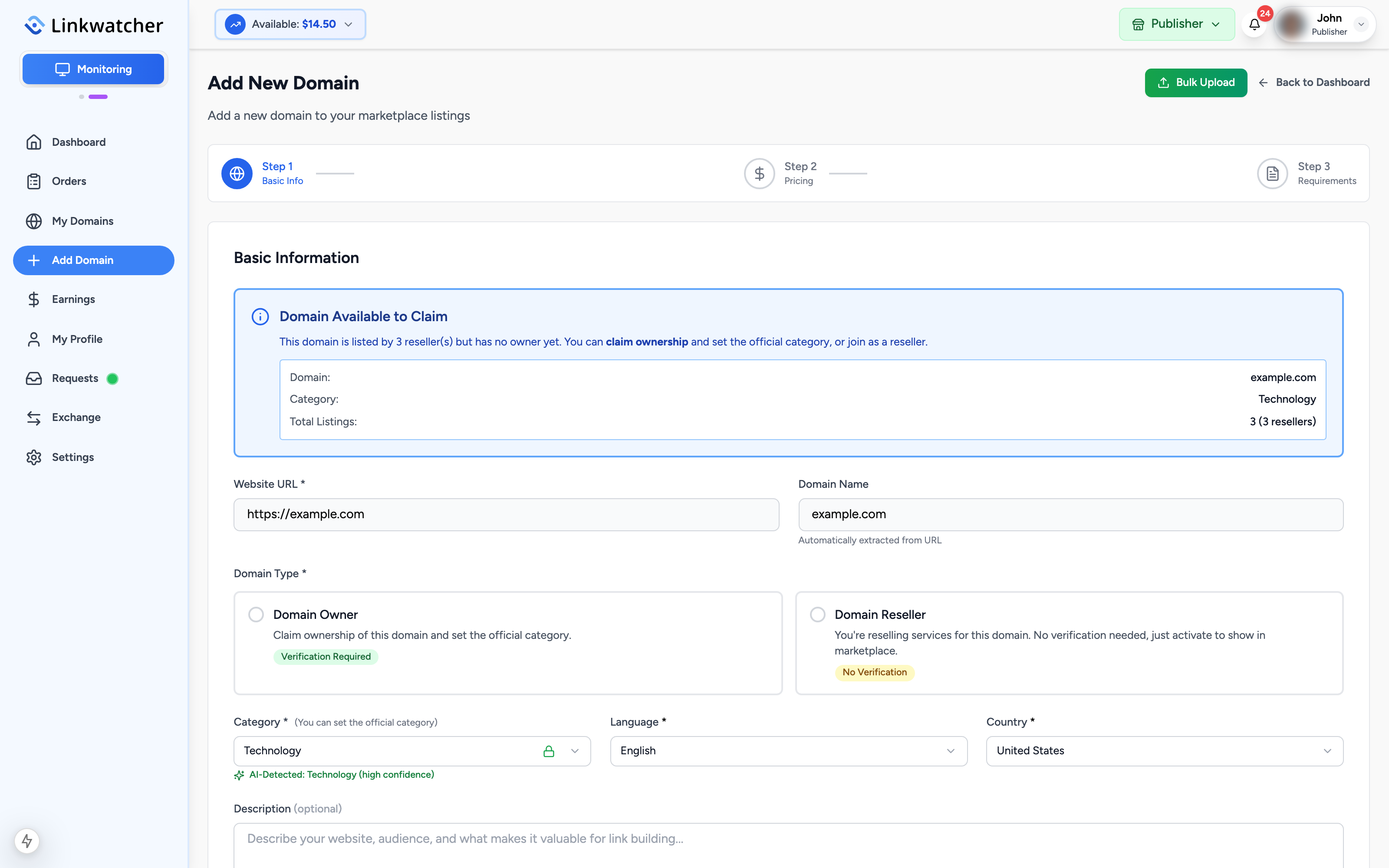
Review and complete the basics:
- Category: usually detected automatically from your site content. If it was detected with high confidence it may be locked.
- Description: a short description of the site for buyers.
- Language and Country: prefilled when detected, otherwise pick them yourself.
- Owner or reseller: choose whether you own this website or resell placements on it. If the domain already has an owner, you can only join as a reseller.
Step 3: Pricing
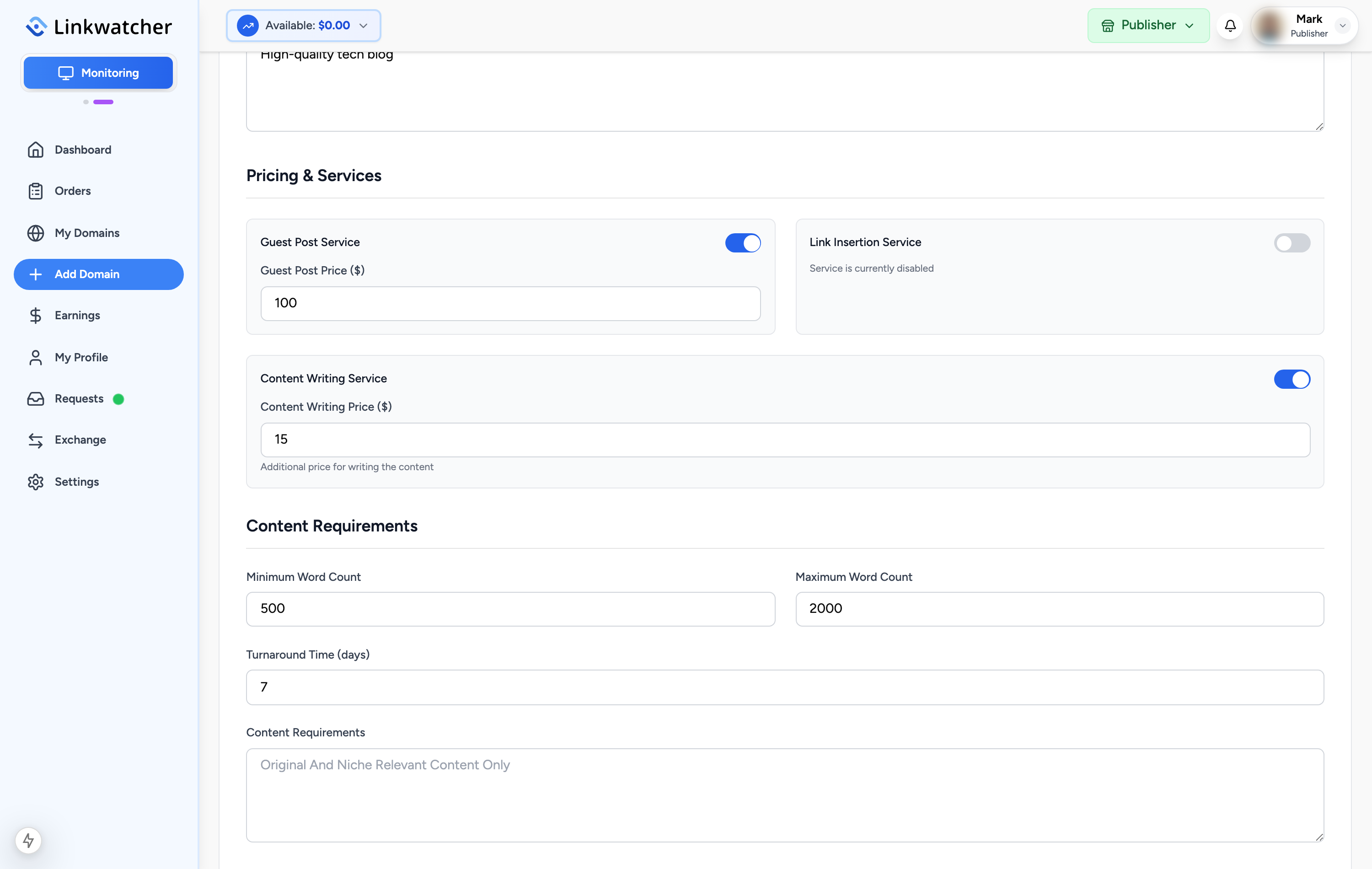
Enable the services you want to offer and set a price for each:
- Guest post: a full article published on your site.
- Link insertion: a link added to an existing article.
- Content writing (optional): offer to write the guest post article yourself for an extra fee.
At least one of guest post or link insertion must be enabled, and every enabled service needs a price greater than zero, for example $25.00. If you do not want to offer a service, disable it instead of pricing it at zero.
Note: A small platform fee is deducted from each sale (waived for publishers on the Agency or Enterprise monitoring plan, who receive the full listed price), so your payout per order is slightly below your listed price. The exact earnings are always shown on each order.
Step 4: Requirements
Tell buyers what you accept:
- Minimum and maximum word count for guest posts.
- Turnaround time in days. This becomes the delivery deadline on your orders, so set a number you can reliably meet.
- Content requirements and prohibited niches (one per line).
- Dofollow or nofollow: which link type your site provides (required).
- Maximum outbound links per post.
- Search engine indexed: whether your site is indexed (required).
- Example posts: at least one URL of a real article on your domain. It must be a specific post, not the homepage, and it must be on the same domain you are adding.
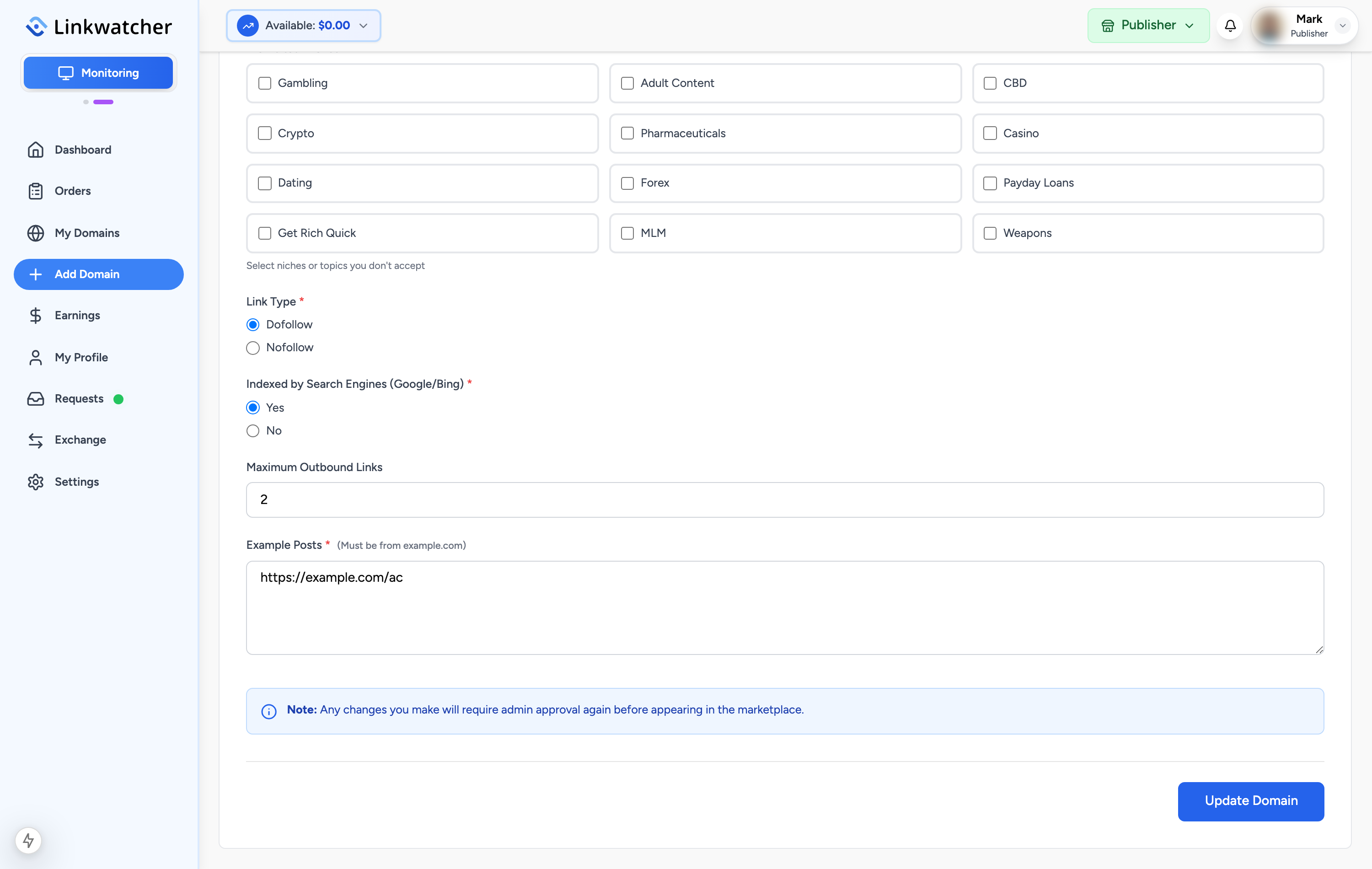
Click Submit when everything is filled in.
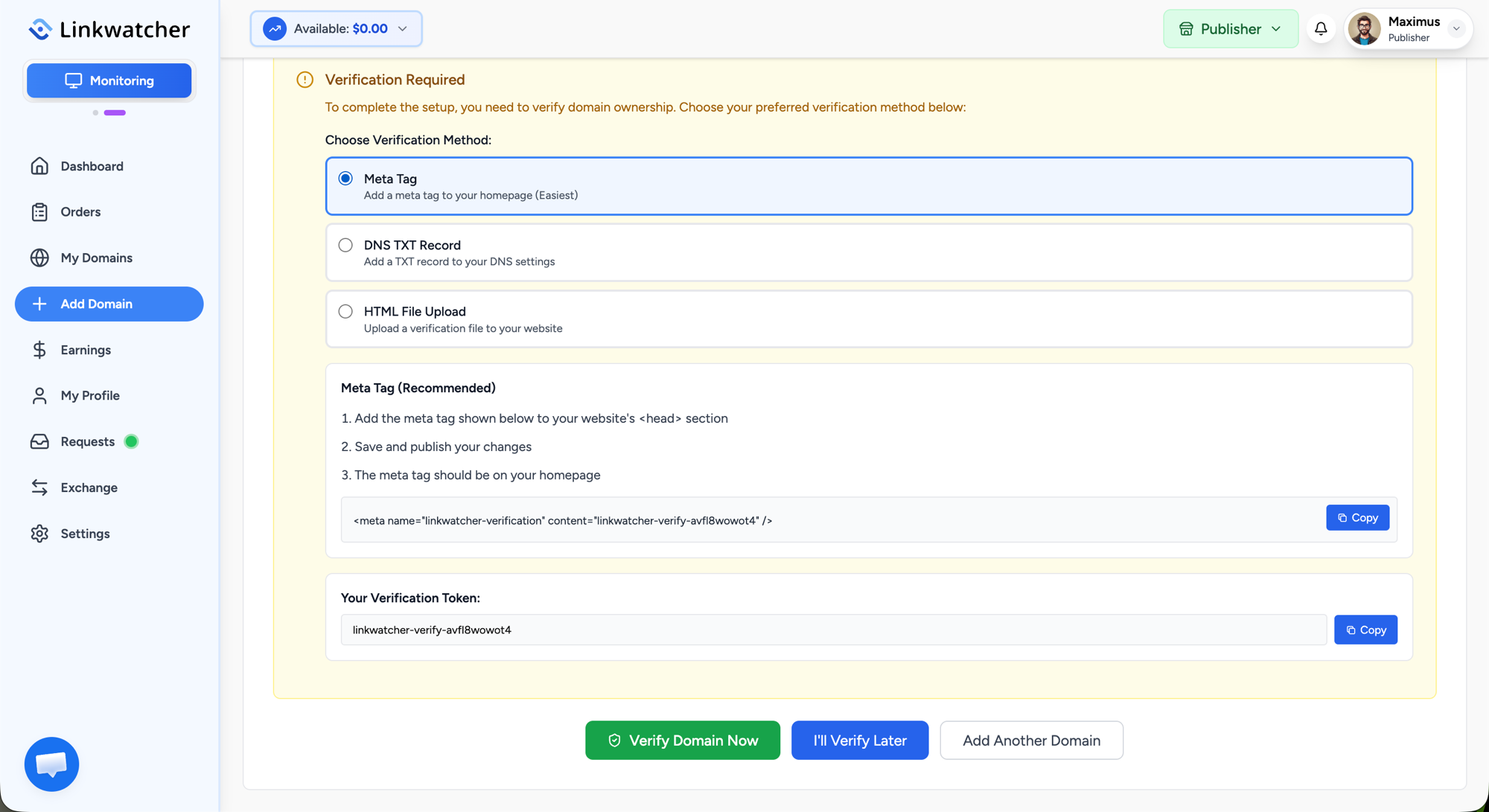
Step 5: Verify ownership (owner listings only)
If you listed the domain as its owner, you must prove you control it. Choose one method:
- Meta tag (easiest): add the provided tag to your homepage.
- DNS TXT record: add a TXT record named linkwatcher-verification with your token at your DNS provider. Propagation can take up to 48 hours.
- HTML file upload: upload a small verification file to your website root.
Copy your verification token, complete the setup, then click Verify Domain Now. You can also choose I'll Verify Later and verify from the My Domains page at any time. Reseller listings skip this step.
Review before going live
Every new listing is also reviewed by the Linkwatcher team before it appears in the marketplace. Until then it shows as Pending Approval on your My Domains page. If a listing is rejected, the reason is shown there. Reseller listings for a domain that already has approved publishers can be approved automatically.
Note: Have many sites? Use the Bulk Upload button on the Add Domain page to import domains from a CSV file. A template is provided for download.