Getting started with monitoring
Create your first project, add backlinks to monitor, and learn your way around the dashboard.
Linkwatcher's monitoring system keeps an eye on your backlinks around the clock. This guide walks you through creating a project, adding your first links, and reading the dashboard.
Create your first project
A project represents one website you want to monitor. When you sign in for the first time and have no projects yet, Linkwatcher takes you straight to the project creation screen.
- Enter a Project Name, for example "My Blog".
- Enter the Website URL, for example
https://example.com. This is the domain Linkwatcher will look for when it checks your backlinks. - Choose your Timezone. Dates and times across the project are shown in this timezone.
- Click Let's Go. You are taken to the dashboard.
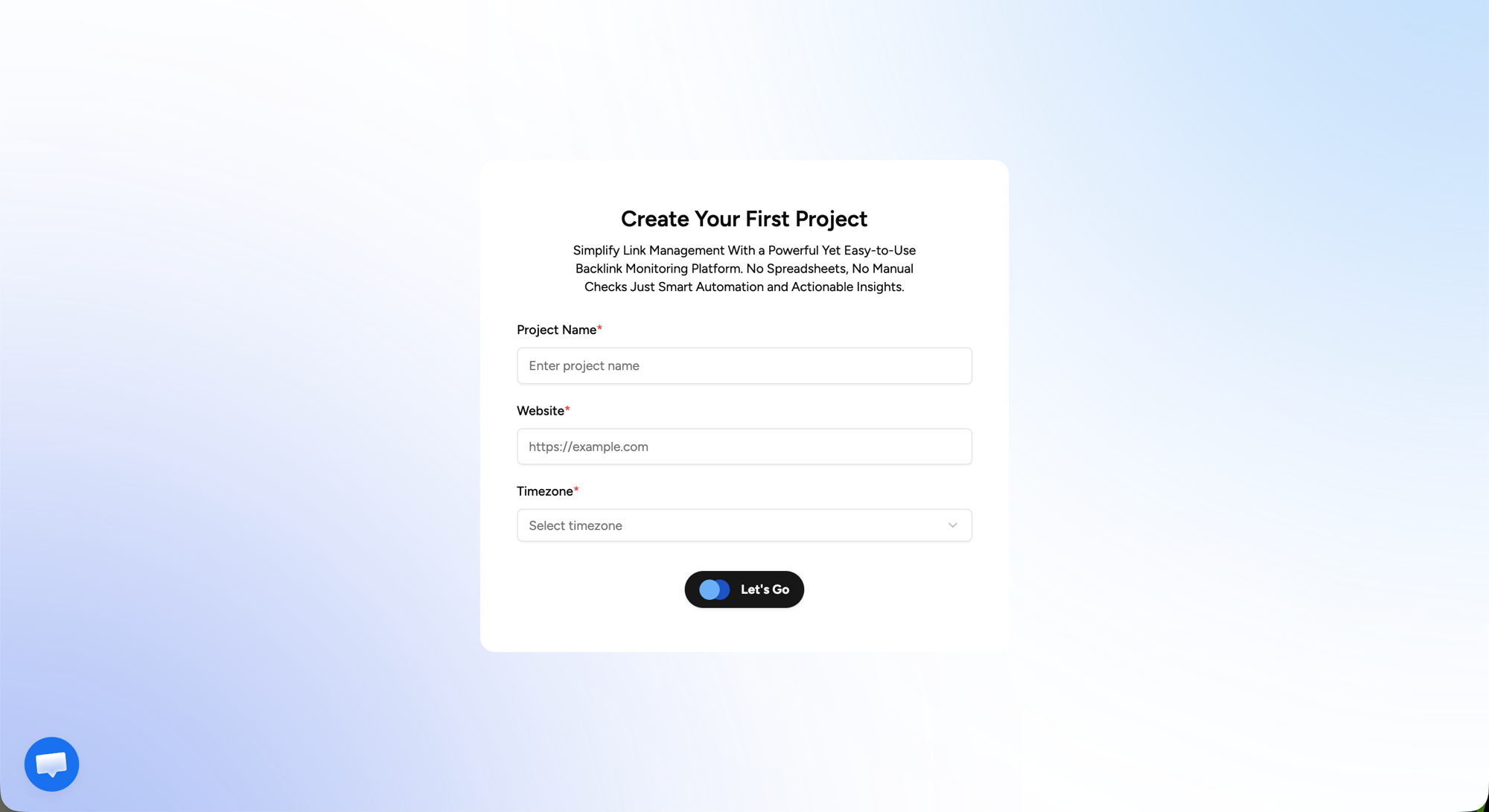
Note: All three fields are required. The website must be a valid URL, so include
https://at the start.
You can create more projects later from the project selector in the top bar, and adjust an existing project under Settings > Project Settings.
Add backlinks to monitor
- Open Links in the left sidebar.
- Click Add Link in the top right.
- Pick one of the three tabs:
- Single Link: paste one referring page URL, optionally set a link type, tags, added and expiry dates, cost, and a comment.
- Multiple Link: paste a list of URLs, one per line, to add links in bulk.
- Import from file: upload a CSV file. A sample CSV is available in the dialog so you can match the expected format.
- Click the submit button to save.
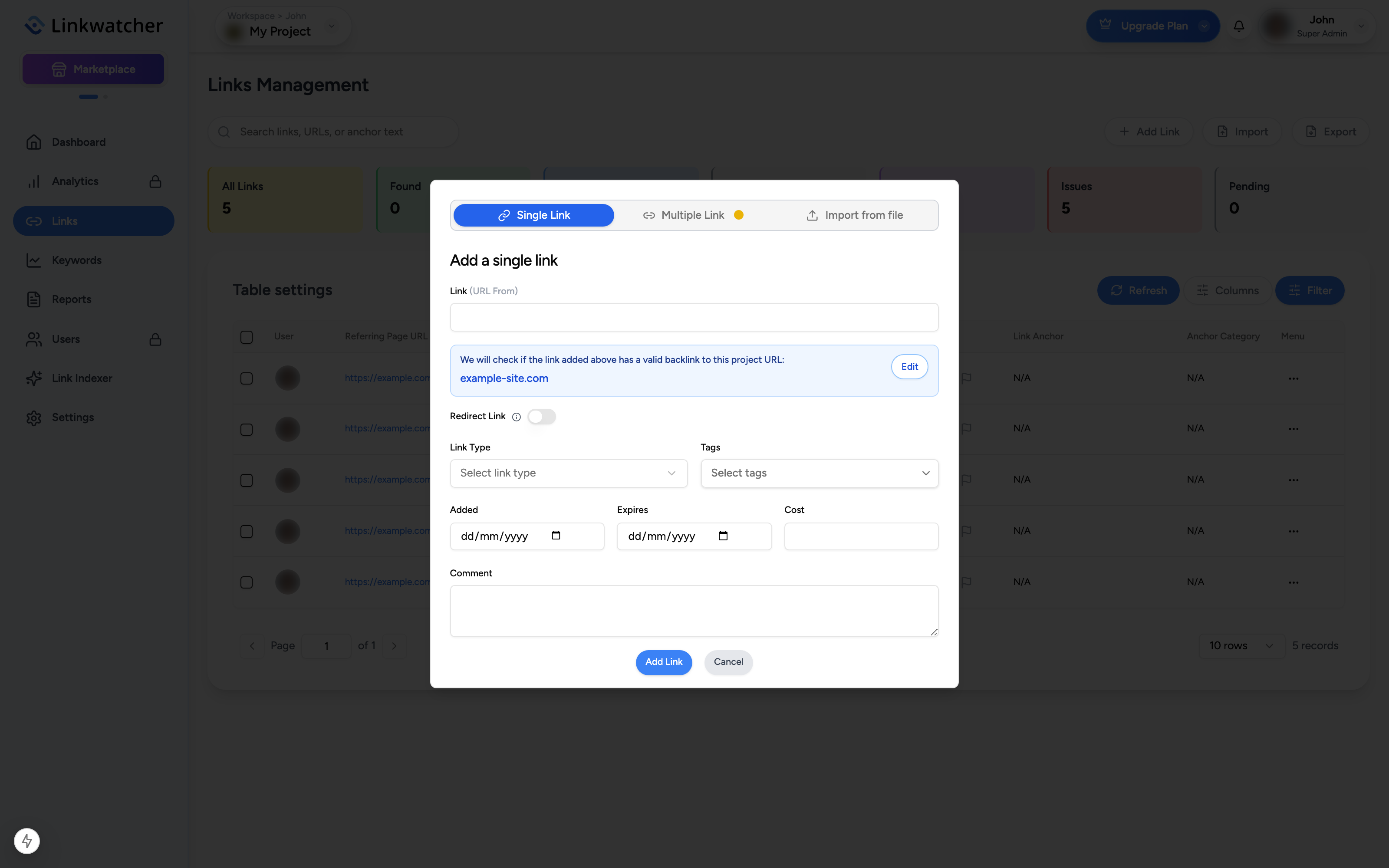
The dialog shows the project website it will verify against, for example: "We will check if the link added above has a valid backlink to this project URL: https://example.com". If a backlink is a shortened or redirect URL, switch on Redirect Link so Linkwatcher follows the redirect before checking.
After you add links, a banner appears on the Links page: fetching live data typically takes 7 to 15 minutes while the first scan runs.
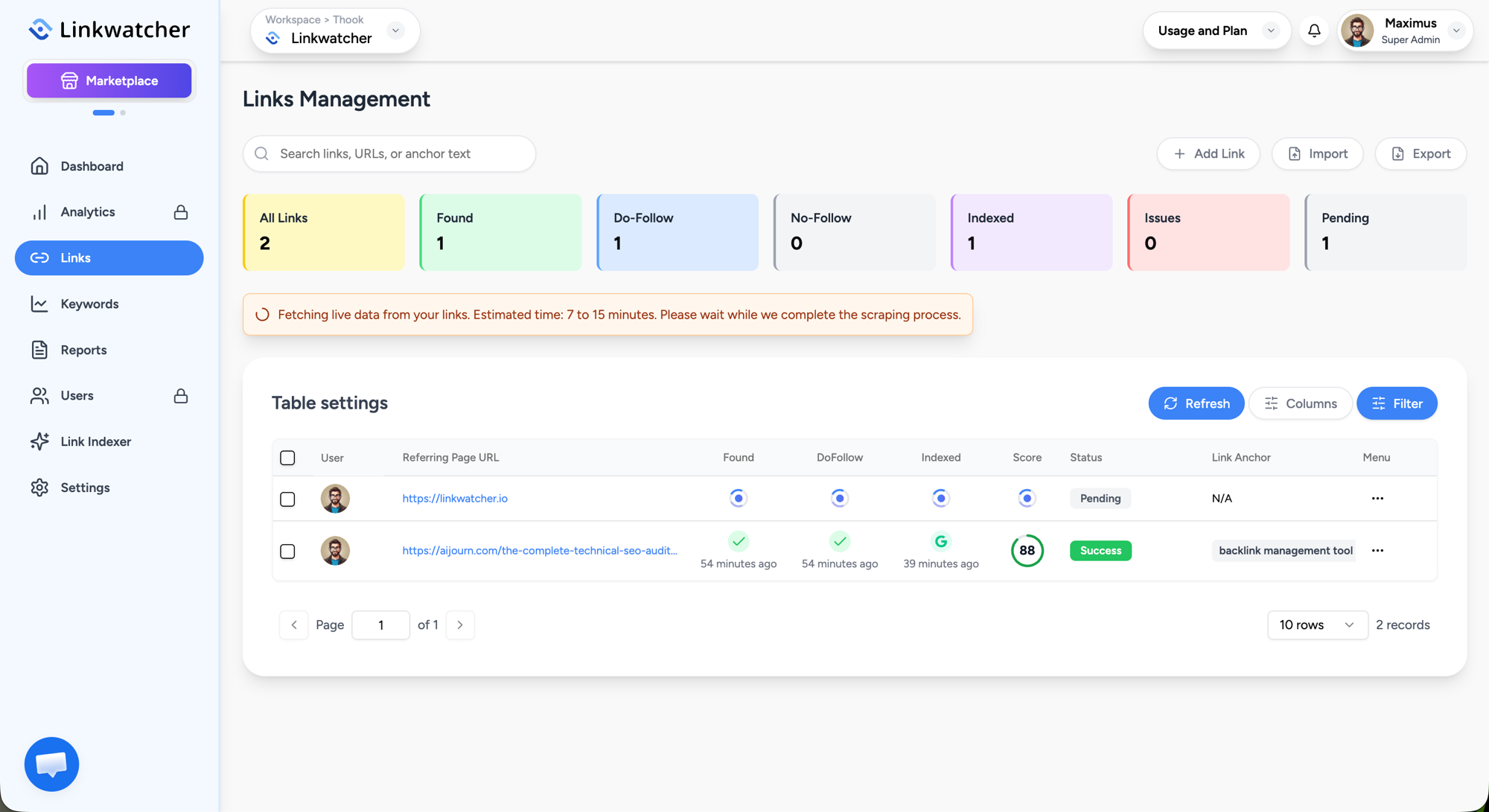
The dashboard
Open Dashboard in the sidebar to see your project at a glance.
- Links Overview: a chart of your monitored links over time.
- Indexer Overview: progress of links you have submitted to the link indexer, including Indexed and Not Indexed counts.
- Team Overview: a summary of activity across the people working in this project.
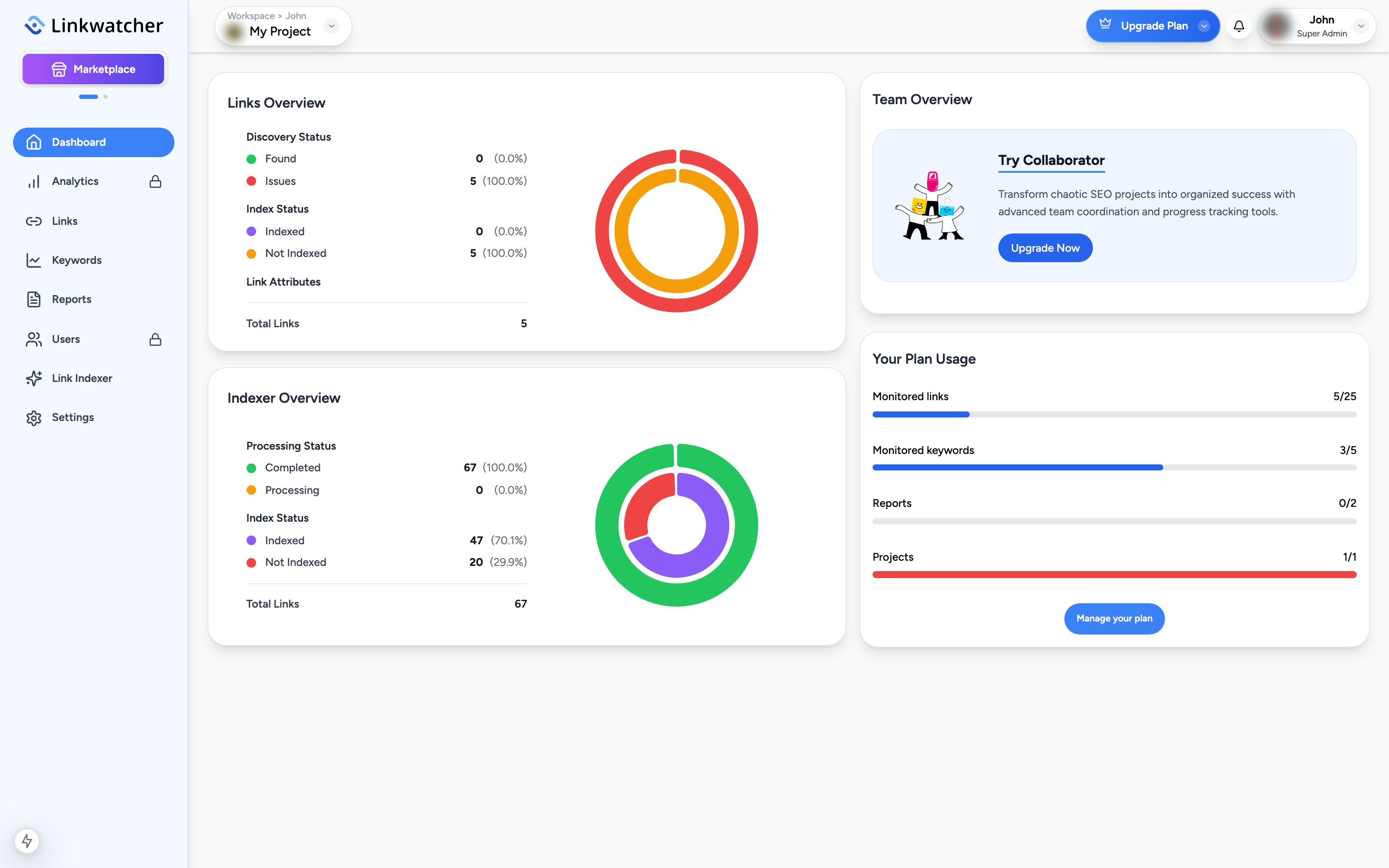
If the project has no links or keywords yet, the dashboard shows an empty state inviting you to add data. While the first scan is still processing, it shows a processing state instead of charts.
Switching between Monitoring and Marketplace
Linkwatcher has two modes. The toggle in the left sidebar, right under the Linkwatcher logo, switches between Monitoring (projects, links, keywords, analytics) and Marketplace (buying and publishing links). This guide covers Monitoring mode; the dashboard described above is only available there.
Next steps
- Learn how link checks and statuses work in Monitor your backlinks.
- Track search rankings with the Keyword rank monitor.
- Push new pages to search engines with the Link Indexer.