Monitor your backlinks
Understand link statuses, the Links table, rescans, and the alerts that tell you when something changes.
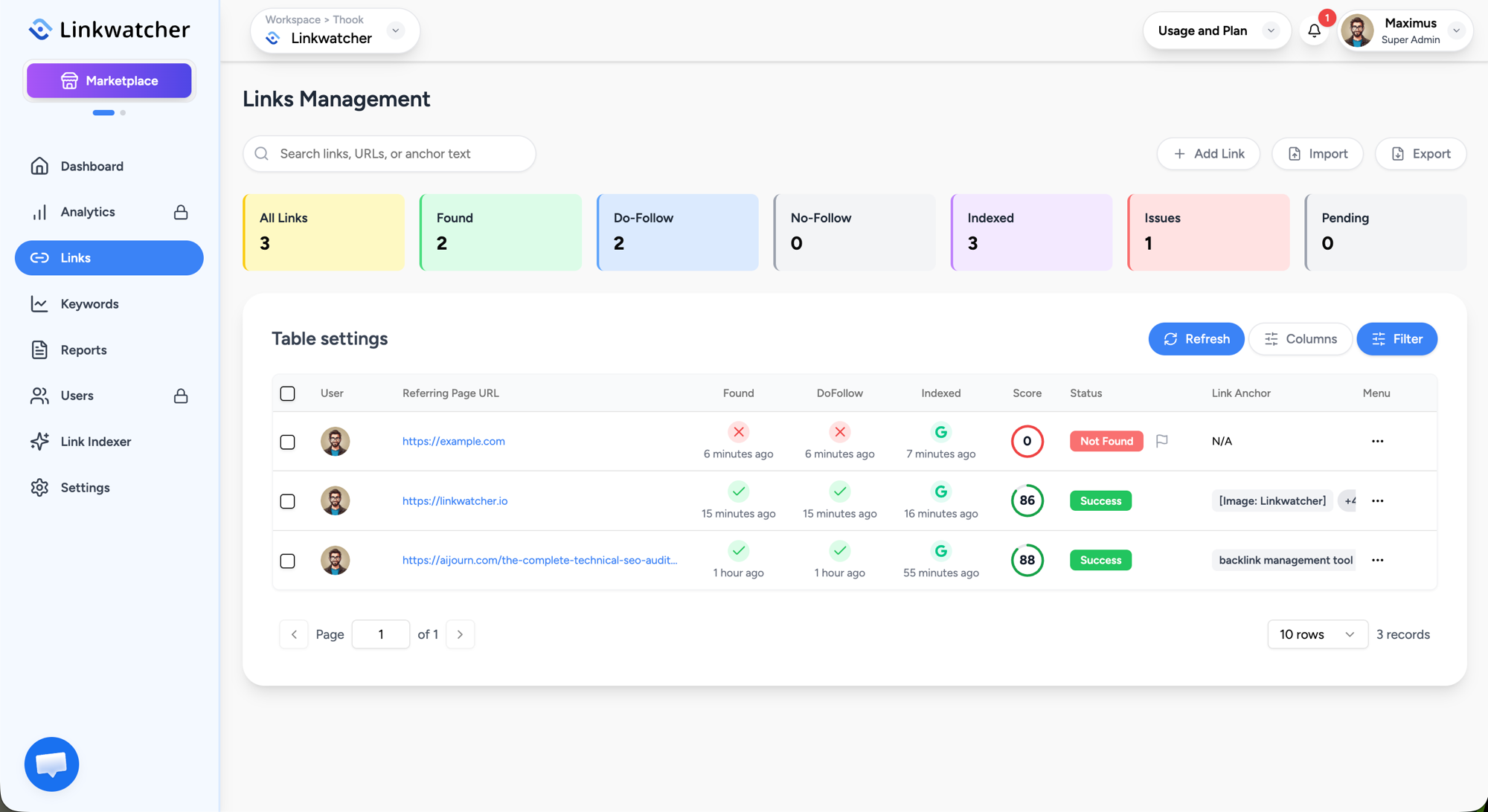
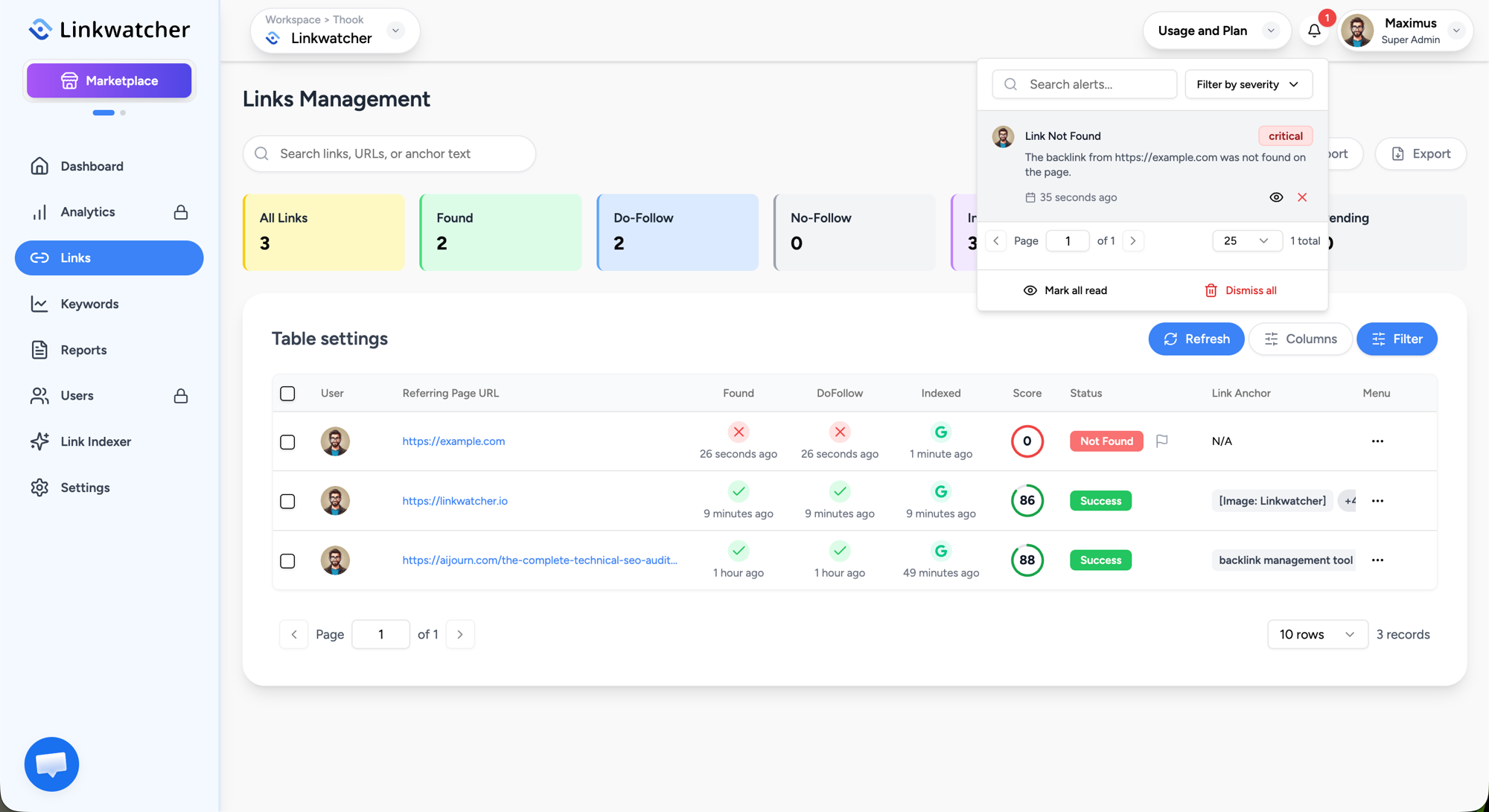
The Links page is the heart of Linkwatcher's backlink management tool. Every backlink you add is checked automatically, and the table shows exactly what Linkwatcher found on each referring page.
Reading the status cards
Across the top of the Links page you see seven cards. Click a card to filter the table to those links, click it again to clear the filter.
- All Links: everything you monitor in this project.
- Found: the backlink to your website is live on the referring page.
- Do-Follow and No-Follow: how the live links are attributed.
- Indexed: referring pages that search engines have indexed.
- Issues: links with a problem, for example the backlink was not found on the page or the page returned an error.
- Pending: links waiting for their next check.
Link statuses in the table
The Status column shows the result of the most recent check for each link:
- Found / Success: the page was crawled and your backlink is present.
- Not Found: the page loaded but no backlink to your project website was detected. This usually means the link was removed or changed.
- Pending: the link has not been checked yet.
- Redirect: the referring URL redirects elsewhere; the redirect target is shown next to the status.
- Error states: the page could not be crawled, for example it returned an error.
Other columns track what the crawler saw: Found, DoFollow, Indexed, the Link Anchor and its category, the Link URL your backlink points to, rel attributes, outbound link counts, location, and a Watcher Score that grades link quality from red (low) to dark green (80 and above).
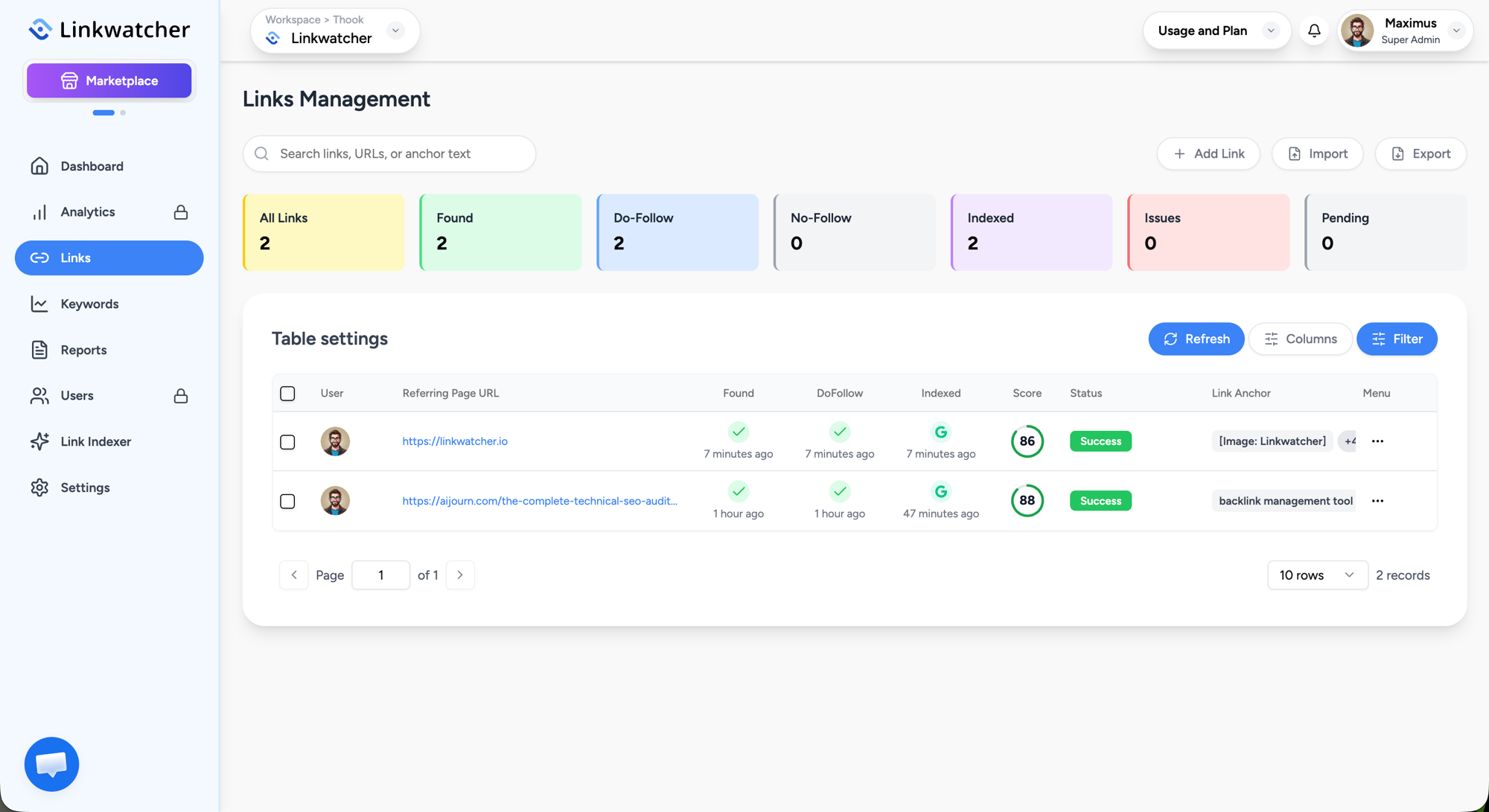
Note: If a link shows Not Found or an error and you believe the result is wrong, use the flag icon next to the status to send a moderation request so the team can re-review that link.
Customizing the table
- Use the Columns button to show or hide any column. Your choices are saved per project.
- Use Filter to narrow the table by type, user, status, tags, anchors, link URLs, locations, rel attributes, or anchor categories.
- Use the search box to find links by URL or text, and the pagination controls to change page or rows per page (10 to 100).
Re-checking links
Linkwatcher checks links automatically, but you can request a fresh check at any time:
- Open the row menu (the three dots at the end of a row) and choose Rescan for a single link.
- Or select multiple links with the checkboxes, open Bulk Actions, and choose Rescan Links.
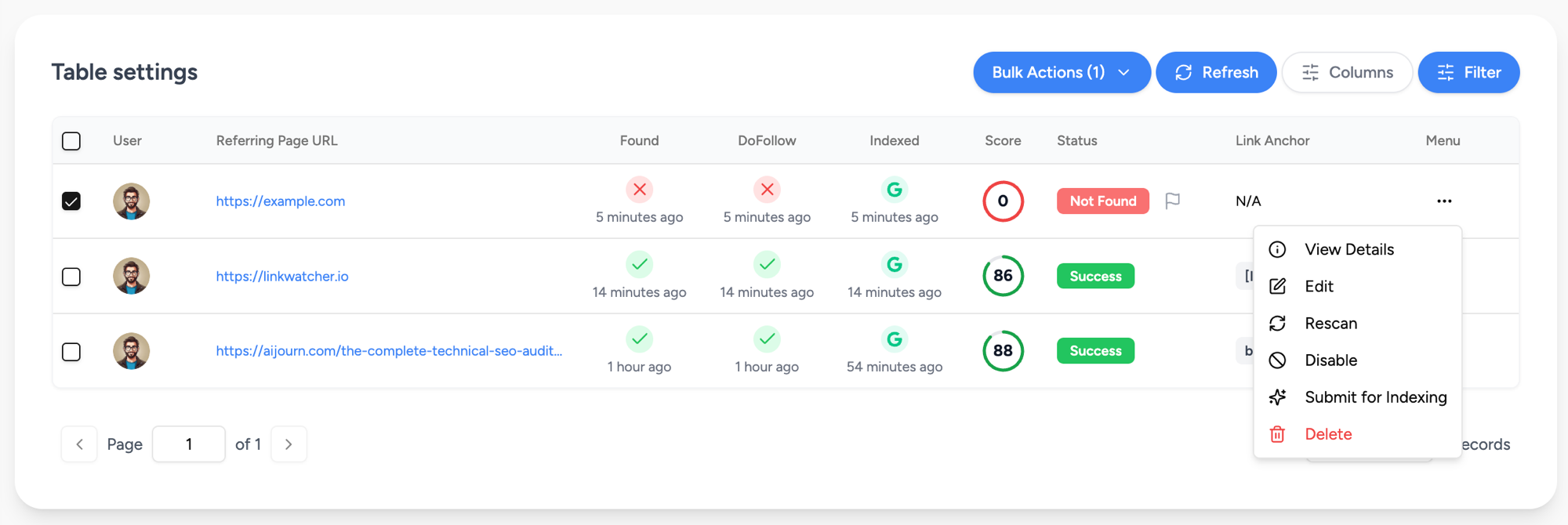
The row menu also lets you View Details, Edit, Disable or Enable a link (disabled links are kept but no longer checked), Submit for Indexing, and Delete. Click Refresh above the table to reload the latest results.
Alerts and notifications
When a check detects a problem, Linkwatcher creates an alert. Open the bell icon in the top bar to see them. You can also manage your notification settings to control how alerts reach you.
- Each alert has a severity badge: Critical or Warning.
- Click an alert about a link to jump to the Links page filtered to that URL.
- Use the eye icon to mark a single alert as read, the X to dismiss it, or Mark all read at the bottom of the panel.
- You can search alerts and filter them by severity.
Email reports
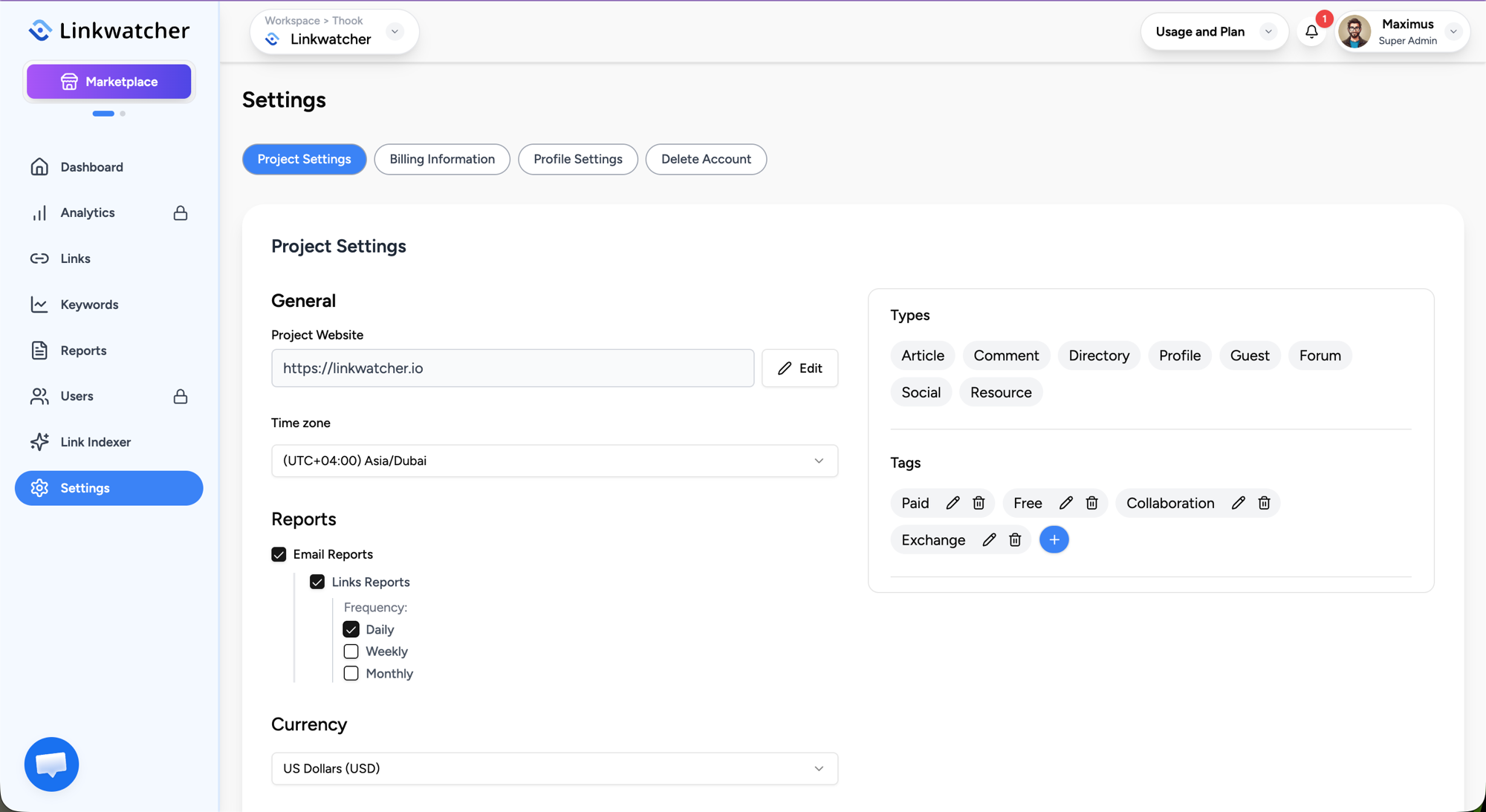
To get summaries by email, go to Settings > Project Settings, enable Email Reports, and choose Daily, Weekly, or Monthly frequency separately for Links and Keywords.